
Understanding the Innovus Environment and Session: how a session starts
Why this chapter matters in a real project
Many common early failures in a physical design flow are not design problems. They are environment problems. The wrong release was started. A personal startup file changed a setting. The license was missing. The disk was full.
The failure shows up as a strange message in the middle of a flow, and the cause is far away from it. An engineer can lose a day chasing a "bug" that a two-minute check would have caught.
The opposite mistake is just as costly. A run ends with status zero and no error word, so the team calls it good. Later someone finds that a step never ran. A clean-looking run that proves nothing is a missed real failure.
A short, careful check of the environment catches many of these surprises. It costs minutes. It also gives you a record of how a session was started, so that someone else can repeat it. See Figure 1 for the whole chapter on one page.
Prerequisites
- A working knowledge of a Linux terminal: typing a command, reading its output, changing folders.
- For the lab (Part II): a 64-bit Linux host with Bash and a text editor. No design, no PDK (process design kit) and no download is needed.
- For Track B of the lab only: an Innovus that you are allowed to use. Without it you can still finish Track A, which proves your shell side.
- Your site administrator's answers on the install location, the license setup and your CPU allocation. This guide does not guess them.
- You do not need to know Tcl. The few Tcl rules we use are explained where they appear.
- You do not need to know any implementation step. No design is loaded in this chapter.
Learning objectives
- Describe an Innovus session as a chain: you, the shell, an executable, a tool process and a Tcl interpreter.
- Keep installation, environment and licensing apart, and say what each one proves.
- Explain why the release and the user interface must be known before you trust any example.
- Predict how the working folder, startup files and temporary storage change a session.
- Read a CPU request, a scheduler allocation and a license as three different things.
- Say what a log, a command record and an exit status can prove, and what they cannot.
- Apply these ideas in a short lab, and record each result as PASS, FAIL, UNKNOWN or NOT PERFORMED.
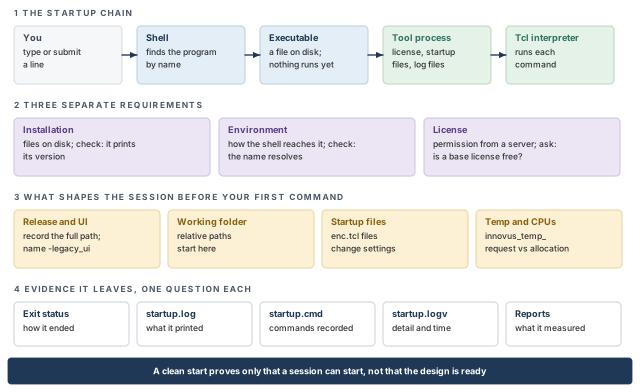
What to notice: Each panel answers a different question. The result bar states the limit: a clean start proves only that a session can start.
Come back to it whenever you lose your place.
Part I - Understanding the environment and the session
Part I teaches ideas. It asks you to run nothing. Where a short example helps, it is self-contained. Bash examples run in a Bash terminal. Examples at the Innovus prompt need a licensed tool. Part II is a separate lab that applies these ideas.
- A block with a
$prompt runs in an ordinary Linux terminal. Do not type the$. - A block with an
innovus>prompt runs at the Innovus prompt, after the tool has started. Your release may show a numbered prompt, such asinnovus 1>. - A block with a
FILEorPASTE WHOLEheader holds text you save or paste whole. It has no prompts. - Text after
#or;#is a comment. The shell and Tcl both ignore it. - A block headed
ILLUSTRATIVE OUTPUTis example output. Your paths, dates and numbers will differ.
Output that only a licensed tool can print is marked as an example, because this guide cannot run Innovus for you. Tool behavior described here is for the Legacy UI of one release. Your installed release can differ. Check each option in your own installation with help before you trust it, from any guide, this one included.
1 Where this chapter fits
Before a design can be implemented, a tool session must start in a known state. If the state is unknown, every later result is open to doubt.
Let us begin with the question: what must be true before we load a design?
A chip design reaches physical implementation as a gate-level netlist. A netlist lists logic gates and the wires between them. It carries no positions. A tool must place the gates, build the clock network, route the wires and check the result. This family of tasks is called place and route, or PNR.
Innovus is the Cadence tool for this work. It reads design files and keeps the design in memory, in a database. You give it commands in Tcl, at a prompt or from a script file. The database lives only as long as the session. When the session ends, only the files it wrote remain.
Figure 2 shows where this chapter sits in the flow.
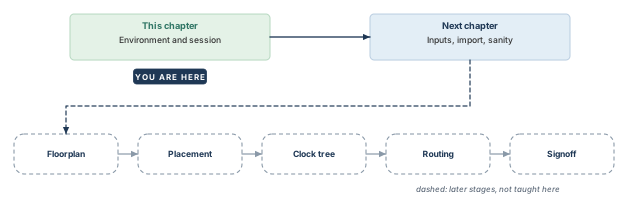
What to notice: Each box depends on the one before it. The dashed boxes are later stages. They are destinations here, not lessons.
1.1 Five kinds of "ready"
The word "ready" hides five different questions. Each has its own evidence. Mixing them is a common beginner error. Table 1 lists them.
| Kind of readiness | The question it answers | Where it is settled |
|---|---|---|
| Startup readiness | Can the tool start, as the intended release and UI, in a usable folder, with the licenses it needs? | This chapter |
| Design readiness | Are the input files complete, consistent and loaded as intended? | Design Data Preparation, Import, Sanity Checks and Export |
| Implementation quality | Are placement, clocking and routing sensible for this design? | Placement, Pre-CTS Optimization, Checks and Handoff through Routing, Post-Route Optimization, Checks and Handoff |
| Timing closure | Do all required setup and hold checks pass in every analysis view? | Signoff Preparation and Timing ECO Closure |
| Signoff | Do independent signoff tools accept the result? | Chip Finishing and Signoff Handoff |
Thus, a session that starts cleanly has earned only the first row. It says nothing about the rows below it.
1.2 How Part I is organized
The next eight sections follow the life of a session:
- what happens when you press Enter;
- installation, environment and licensing, kept apart;
- finding the tool, its release and its UI;
- working folders, startup files and temporary storage;
- execution modes, CPU requests, logs and exit status;
- reproducibility, and a plain statement of what a successful startup proves.
A colleague says: "The session started, so the design is ready." Which kind of readiness has the session shown? Which has it not?
Answer: Starting shows at most startup readiness. Design readiness needs the inputs to be loaded and checked. Implementation quality, timing closure and signoff each need their own evidence.
2 What happens when a session starts
When a start fails, the first question is "which layer failed?" The answer decides who can fix it and where to look.
Let us follow one command from your keyboard to the tool. There are five layers, and each has a different job. Figure 3 shows them, with the kind of message each layer prints.
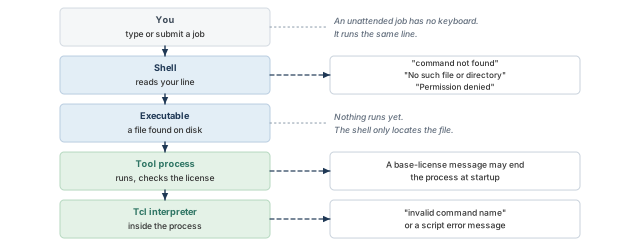
What to notice: Three layers print their own kind of message, shown boxed on the right. The other two print nothing of their own; their notes are plain italic text. The wording of a message tells you which layer spoke.
2.1 The five layers
You. You type a line, or a scheduler runs the same line for you. An unattended batch job normally has no terminal attached. An interactive allocation can have one. Either way, the command runs through the same layers.
The shell. A shell is a program that reads a line and decides what it means. It expands variables, finds the program you named and starts it. Bash is one shell. The shell knows nothing about Tcl.
The executable. An executable is a file on disk that the system can run. The shell finds it by name. Finding a file is not the same as running it. Nothing has started yet.
The tool process. When the shell starts the file, the operating system creates a process. A process is a running program with its own memory and its own working folder. At this point the tool checks its licenses, reads its startup files and opens its log files.
The Tcl interpreter. Inside the tool process sits an interpreter for Tcl, a small scripting language. Every command you give the tool is a Tcl command. The interpreter reads it and runs it. Some commands only inspect. Some change a setting. Some change the design database. Some write a file.
2.2 Two languages, two interpreters
The shell and Tcl look alike. Both use words, quotes and dollar signs. They are different languages, run by different programs. A line that is right for one is wrong for the other.
$ puts "hello" # a Tcl command; the shell does not know it
bash: puts: command not found
innovus> getVersoin ;# misspelled on purpose; the Tcl interpreter does not know it
invalid command name "getVersoin"
The message text varies by release. The layer that speaks does not.
Both messages say "I do not know this command". They come from different layers. The first one tells you the tool never started. The second one tells you a Tcl interpreter answered. At an Innovus prompt, that interpreter belongs to the tool.
Environment variables show the same split. A shell variable such as $HOME is read by the shell. Inside Tcl, the same value lives in an array named env, so you read it as $env(HOME). A value set in a shell is visible to the tool only if it was exported before the tool started.
2.3 Which layer reports a failure?
Table 2 maps common messages to the layer that printed them.
| What you see | Which layer spoke | What it tells you |
|---|---|---|
command not found (bare name) or No such file or directory (path) | The shell | No file of that name was found, on the search path or at the path given. No Innovus process started. |
Permission denied | The shell and the operating system | A file was found, but you may not run it. |
| A base-license message, then the process ends | The tool process | The tool started, and stopped at startup, before it ran your commands. A feature license can still fail later, after startup. |
invalid command name ... | The Tcl interpreter | A Tcl interpreter answered. At an Innovus prompt, with a version printed by the tool, that is the tool's interpreter. The command is wrong, or from another UI. |
| A script stops with an error message | The Tcl interpreter | A command in your script failed. |
Killed | The operating system or a scheduler | Something outside the tool ended it, for example a memory or time limit. |
Do not read every failure as "Innovus is broken". A command not found message never came from Innovus. It came from the shell, because Innovus did not start.
You see invalid command name "setMultiCpuUsage" at an Innovus prompt. Did the tool start? What might be wrong?
Answer: Yes. A Tcl interpreter answered at an Innovus prompt, so the tool process is running. The command may be misspelled, or it may belong to a different UI than the session you started. Check the UI first.
Figure 4 shows the same idea in time order. A start passes six stages, and each stage fails in its own way.
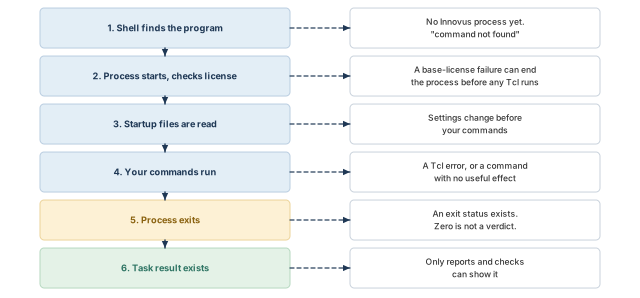
What to notice: Any exit status, zero included, only shows that stage 5 was reached. Stage 6, a correct task result, needs its own evidence.
Read the figure from top to bottom. Stages 1 and 2 can fail before any of your commands run. Stage 4 is where your own mistakes appear. Only the last stage tells you whether the work was worth doing.
3 Installation, environment and licensing
A tool can be installed and still refuse to start. Installation, environment and license are three separate facts. You check them separately, and each one has its own owner.
Let us define the three.
- Installation means the files exist on disk: the programs, the libraries and the help pages. An administrator puts them there.
- Environment means how your shell reaches those files and how a session is configured. It includes the search path, environment variables, startup files and the folder you run in. You and your site setup control it.
- License means permission to run a feature for a period. A license server hands out permissions over the network. A license administrator manages that server.
Figure 5 shows the three side by side, each with its own check.
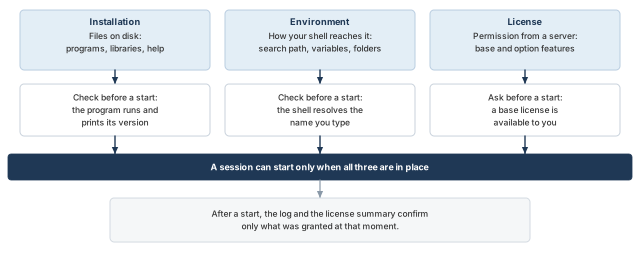
What to notice: The check in one column says nothing about the others. The log and license summary of a started session confirm only what was granted at that moment.
3.1 What each observation proves
A single observation answers one question. It leaves the others open, as Table 3 shows.
| What you observed | What it establishes | What it leaves open |
|---|---|---|
A file named innovus exists on disk | The installation has at least that file | Whether your shell will find it, or whether any license is free |
The shell prints a path for innovus | The environment resolves the name to a file | Which release it is, or whether a license is free |
| The program prints its version | The file runs and is a real program of that release | Whether a session can obtain a license |
| A session starts and the prompt appears | One base license was granted at that moment | Whether option licenses or extra CPU licenses will be granted later |
Thus, "Innovus starts on my machine" proves less than it sounds like. It proves that one license request succeeded once.
3.2 Kinds of license
- Base license. The tool needs one to start. It must be a full product license. An option license alone cannot start the tool.
- Option license. Some features need one. The tool usually checks these out only when a command needs them. A late checkout can pause a script, or end it, if the license is not available in time.
- Multi-CPU license. Extra CPUs for multithreaded or distributed work can need these. They are product licenses too. They are requested after the base license.
Innovus is sold in several packages, and sites buy different sets. Do not assume that your site has every package or option. Ask.
3.3 Looking at licenses from inside a session
Innovus has commands that show license facts. The forms below only display. They change nothing.
innovus> getLicenseStatus ;# list every license this session holds now
The output is a summary of the licenses checked out now, with feature name and version. Do not assume a fixed layout or a count format. Read what your release and your site print.
getLicenseStatus shows what is checked out right now. It does not show what the server could still give you. Table 4 lists two more display forms.
| Command | What it shows |
|---|---|
setLicenseCheck -status | The base license, the wait time, and the allowed and checked-out options. |
setLicenseCheck -existOnServer | A table of licenses on the server. |
These two forms only inspect. However, setLicenseCheck as a whole is not inspection-only. Its -checkout, -default, -optionList and -wait options change how licenses are checked out. Do not use them with values that did not come from your administrator.
setLicenseCheck does not manage multi-CPU licenses. Check those separately, for example with your administrator, before you raise a CPU count.
At launch, the option -wait takes a number of minutes. It sets how long the tool waits for a license before it exits. The default is 0, so the tool does not wait. An instant exit with a license message may therefore be the default behavior, not a server problem.
Options such as -lic_startup and -lic_options choose license names and priority. Use values from your administrator only.
Never look for a way around a license limit. If a license is missing, the safe action is a request.
3.4 Questions to ask, and who answers
You do not edit license settings. You ask, and you write the answers down. A good request names the release, the UI, the feature and the CPU count. Table 5 lists the usual questions.
| Question | Why you ask | Who usually answers |
|---|---|---|
| Which install location or site setup mechanism gives me Innovus? | Several installations can share one program name. | CAD (computer-aided design) administrator |
| How does my shell reach the license server? | Sites differ: modules, setup scripts, variables. | CAD or license administrator |
| Which base license will my session use? | It starts the tool. | License administrator |
| Which option licenses does my flow need? | A late checkout can stall a script. | License administrator |
| How many CPUs may one job use? | Your request must match the allocation. | Scheduler or compute owner |
| How long should a job wait for a license? | An instant exit may be the site default. | License administrator |
Write the date beside each answer. License setups change. An answer from last spring may not describe today.
Why can an executable be found while startup still fails?
Answer: Finding the executable proves only that installation and environment line up. Startup also needs a base license, a writable working area and a valid configuration. Any of these can fail after the file is found.
4 Finding the tool, its release and its UI
Several installations can share one program name. The wrong release or the wrong command set produces failures that look like script bugs.
Let us trace what happens when you type innovus.
4.1 How the shell finds a program
Your shell keeps a list of folders called the search path, stored in the variable PATH. When you type a bare name, the shell searches the folders from left to right. It runs the first executable file it finds with that name. Later folders are never looked at.
$ echo "$PATH" | tr ':' '\n' # one folder per line, in search order
/opt/site/tools/bin
/opt/cadence/innovus_old/bin
/opt/cadence/innovus_new/bin
/usr/bin
Suppose both Innovus folders contain a file named innovus. The shell runs the one in innovus_old, because that folder comes first. The newer installation is never used, even though it is installed. Figure 6 draws this search.
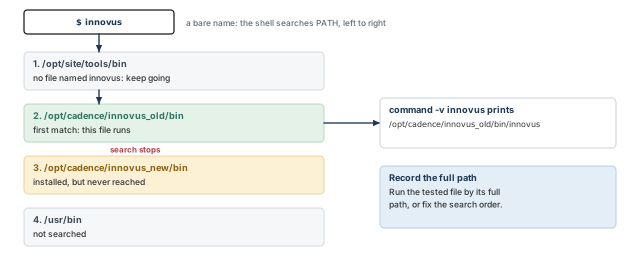
What to notice: The search stops at innovus_old. The newer file in innovus_new exists but is never reached, so installing it changed nothing.
Two Bash commands show this. Other shells have other forms.
$ command -v innovus   # print what Bash would use: normally a path
$ type -a innovus      # list every match in order, with aliases and functions
/opt/cadence/innovus_old/bin/innovus
innovus is /opt/cadence/innovus_old/bin/innovus
innovus is /opt/cadence/innovus_new/bin/innovus
An alias or a function prints its own text instead of a path. More than one line from type -a may mean more than one installation. If nothing prints, the tool is not on the search path.
4.2 Two ways to choose the tool
You can let the search path choose. Or you can name the file yourself with its full path. Both work. They differ in how reproducible they are, as Table 6 shows.
| Method | Example | Good for | Risk |
|---|---|---|---|
| Search path | innovus | Everyday use after a site setup mechanism | The answer changes when the path changes |
| Explicit full path | /opt/cadence/innovus_new/bin/innovus | Reproducible runs and tests | Easy to forget to update |
Many sites set the path with a module system or a site setup file. Ask your administrator which one you should use. Do not guess an install location.
Whichever method you use, record the full path that actually ran. A path in your notes is evidence. "I used the usual one" is not.
4.3 Why the release matters
Options, defaults, messages and commands change between releases. A flag in a tutorial may not exist in your installation. A message may be worded differently. Thus, you must know your release before you trust an example.
$ innovus -version # compare it with the release your project owner named
The output is one line naming the release your site installed. This guide cannot predict it.
Inside a session, the Tcl command getVersion returns the same kind of information. getVersion -major returns the major version only.
4.4 Why the user interface matters
Innovus has two Tcl command sets, called user interfaces. A UI is a vocabulary of commands plus the rules for using them.
- The Legacy UI uses camel-case commands such as
getVersionandsetMultiCpuUsage. Many settings are global variables with names that startinit_. - The Common UI, also called Stylus, uses a different vocabulary. It is built around attributes that you read and write with commands such as
set_db.
The two sets are not interchangeable. Some Tcl and some commands overlap, but you cannot tell which by looking. A script written for one UI is not safely portable to the other without checking each command in your release.
This guide uses the Legacy UI only. Every command it gives is a Legacy command. Do not translate syntax from one UI to the other by guessing.
Table 7 compares the two.
| Idea | Legacy UI | Common UI |
|---|---|---|
| Launch option | -legacy_ui | -stylus |
| Style | Camel-case commands, init_* variables | Attribute-based commands |
| Local CPU setting | setMultiCpuUsage -localCpu 4 (a number) | An attribute. Look up its name with help in a Common UI session |
The launch options -legacy_ui and -stylus exclude each other. Name the one you want every time. Do not rely on a default.
If a command is "unknown", check the UI first, then the spelling, then whether your release has the command at all. Using one UI's command in the other UI's session is one possible cause among several.
4.5 Where to find help
Table 8 lists where to look before you trust an option.
| Where | Command | What you get |
|---|---|---|
| Linux terminal | innovus -help | Usage and options of the launch command. |
| Linux terminal | man innovus | The manual page, when MANPATH includes the manual folder of the installation. |
| Linux terminal | cda | The Cadence Doc Assistant, installed with the tool. |
| Innovus terminal | help getVersion | The syntax of one command. |
| Innovus terminal | man getVersion | The full manual page of one command. |
Inside Innovus, man finds its own pages without extra path setup. Use help and man in your installed release before you trust an option from any guide.
type -a innovus prints two paths. A test passed with the second one. What can go wrong later?
Answer: The shell runs the first path, not the second. A later job starts a different release than the one you tested. Fix the search path, or run the tested file by its full path, and record the path that ran.
5 Working folders, startup files and temporary storage
A session behaves as its working folder and its startup files dictate. Two people running the same commands can get different results from these two things alone.
Let us start with the working folder. Every process has one. It is the folder the process is "standing in". When a path does not start with /, the system resolves it from the working folder. Such a path is called relative.
5.1 Relative paths and the working folder
The short demo below builds two folders with the same relative file name and different content.
$ D=/tmp/cwd_demo                            # one scratch folder keeps lines short
$ mkdir -p "$D/a/data" "$D/b/data"           # make two folders
$ echo "from a" > "$D/a/data/in.txt"         # same relative name, content "from a"
$ echo "from b" > "$D/b/data/in.txt"         # same relative name, content "from b"
$ (cd "$D/a" && cat ./data/in.txt)           # read from folder a; ( ) keeps your folder
$ (cd "$D/b" && cat ./data/in.txt)           # read the same relative path from folder b
from a
from b
The command text did not change. The working folder did. The answer changed with it. Figure 7 draws the same effect.
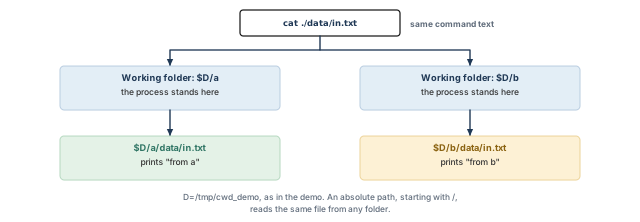
What to notice: The command text is identical in both columns. Only the working folder differs, and so does the file that is read.
A tool session behaves the same way. A relative path in a script is resolved from the folder where the session runs. Two things follow:
- If you start the tool from a different folder, a relative path may point at a different file, or at nothing.
- A child process inherits the working folder of its parent, unless it changes folder itself.
The Tcl commands pwd and cd show and change the working folder inside the tool. They do not change the folder of the shell that started it.
An absolute path starts with /. It means the same thing from any folder. For files that must be found reliably, an absolute path removes one source of doubt.
5.2 Startup files: what runs before your first command
Before your commands run, the Legacy UI reads initialization files in a fixed order. A missing file is simply skipped. Table 9 lists them, and Figure 8 shows the order.
| Order | File | Read in non-GUI mode? |
|---|---|---|
| 1 | GUI preference files in ~/.cadence/innovus/ and ./.cadence/innovus/ | No |
| 2 | enc.tcl in the installation's etc/innovus/ folder | Yes |
| 3 | ~/enc.tcl | Yes |
| 4 | ./enc.tcl | Yes |
The Common UI reads a different list of files. This guide does not cover it.
Any of these files can change settings before your commands run. The file in the current folder is easy to forget. A personal file can set a CPU count or change a default without leaving any trace in your own script.
Thus, two engineers can run the same script with the same inputs and get different results, because their startup files differ. Look before you trust a session.
$ ls -l ~/enc.tcl ./enc.tcl # "No such file" is a good answer here
ls: cannot access '/home/you/enc.tcl': No such file or directory
ls: cannot access './enc.tcl': No such file or directory
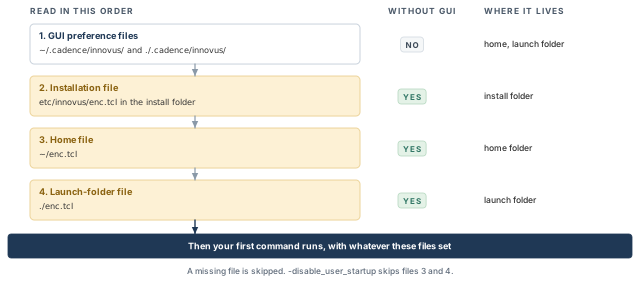
What to notice: The later files can change what the earlier ones set. The current-folder file is the easiest to forget, and none of them appears in your own script.
If a file exists, read it and note what it does before you trust the session. Do not delete or rename a file you did not write. Ask its owner.
The launch option -disable_user_startup skips ~/enc.tcl and ./enc.tcl. The installation enc.tcl is still read. Whether to use it for a shared flow is a decision for the project owner. It trades flexibility for certainty.
5.3 Temporary storage
Each session creates its own temporary folder. Its name begins innovus_temp_, followed by the process number, host name, user name and a unique string. The tool uses it for scratch data while the session runs.
The tool makes the folder in the folder you launch from, and uses /tmp when that folder is not writable. Confirm this on your release. The tool removes it when the session ends normally, or after a signal it can catch. A hard kill gives the tool no chance to clean up.
The variables FE_TMPDIR and TMPDIR follow a separate rule, for the temporary files of parasitic extraction. The tool tries FE_TMPDIR, then TMPDIR, then the current folder, then /tmp. Figure 9 puts the two rules side by side.
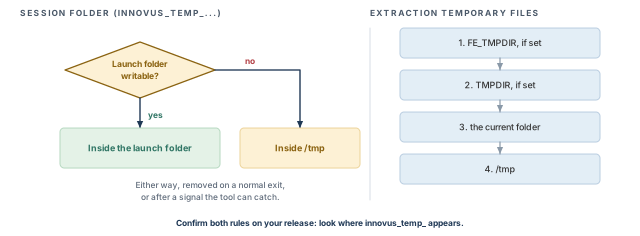
What to notice: TMPDIR appears only in the right-hand rule. Setting it does not move the session folder; confirm on your release.
So do not assume that TMPDIR moves the session folder. The two rules belong to different features, and your release may differ. Confirm on your release. Start a session in a fresh folder, look where an innovus_temp_ folder appears, and write down what you saw.
$ if [ -z "${TMPDIR+x}" ]; then echo "TMPDIR is unset"   # unset, empty or set?
> elif [ -z "$TMPDIR" ]; then echo "TMPDIR is set but empty"
> else echo "TMPDIR=$TMPDIR"; fi
$ df -Pk .     # free space, in kilobytes, for the current folder
$ ls -ld /tmp  # permissions of /tmp, the fallback if the launch folder is read-only
TMPDIR is unset
Filesystem     1024-blocks     Used Available Capacity Mounted on
/dev/sda1        102400000 61440000  40960000      60% /
drwxrwxrwt 12 root root 4096 Oct 12 09:30 /tmp
Look at the Available column, and at the w in the permissions. Two practical rules follow:
- The folder that will hold temporary data must be writable and must have free space.
- If work is spread over several machines, some flows require temporary data to be visible to every machine. A private
/tmpon one machine is then the wrong place. Check your flow's own rules.
Inside a session, report_disk -dir /tmp reports used and free space and the disk speed of a folder. Here /tmp is only an example folder; name the one you care about.
Assuming the temporary folder is "somewhere safe". It is wherever the rules of your release put it. A full or read-only folder shows up as a write error or an early stop, often far from the cause.
A script reads ./data/in.txt. It works from your terminal and fails in a scheduler job. Give two possible reasons connected to this section.
Answer: The job may start in a different working folder, so the relative path points elsewhere. Or a startup file may be read in one place and not the other. Print the working folder in both runs, and list the startup files.
6 Interactive, batch and headless execution
The same tool can run with a prompt, with no prompt, with a window, or with no window. Each choice changes what the session needs and how it ends.
Let us separate four things that beginners often mix up:
- whether you have a terminal;
- whether you have a display;
- whether the tool ran;
- whether the work succeeded.
They are four different facts.
6.1 The words
- An interactive session shows a prompt and waits for you to type commands. It ends when you type
exit, or when the process is killed. - A batch session has no prompt. With the launch option
-batch, the tool processes the commands and files you gave it at launch, and then exits by itself. - A GUI (graphical user interface) is the graphical window. Started with no options,
innovusopens a GUI. The launch option-no_guiturns the GUI off for the whole session. A session without a GUI needs no display. - Headless means there is no display attached. A scheduler job on a compute host is usually headless.
Useful work does not need a GUI. A great deal of implementation work runs in sessions that never open a window.
6.2 What each mode needs
Table 10 compares the three common modes.
| Mode | Terminal to type in? | Display needed? | Who ends the session? |
|---|---|---|---|
| Interactive with GUI | Yes | Yes | You, or a crash |
Interactive without GUI (-no_gui) | Yes | No | You, with exit |
Batch without GUI (-no_gui -batch) | No | No | The tool, after its files are processed |
A batch run on a compute host needs neither a keyboard nor a screen. An interactive run in a job with no input attached may wait for input that never comes. It looks like a hang. Some schedulers can give a job a terminal, and then an interactive run can work. For unattended work, choose batch.
6.3 Four facts, four different pieces of evidence
Each of the four facts has its own evidence, as Table 11 shows.
| Fact | What shows it |
|---|---|
| Input is available | You can type, or the job has an input stream. A log stream alone is output, not input. |
| A display is available | The GUI opens, or a display variable points to a working server. |
| The tool ran | A process existed, and its log files exist. |
| The work succeeded | Reports and checks show that the task did what you wanted. |
A batch session that ended is not a batch session that succeeded. "It finished" and "it worked" are different sentences.
6.4 Ending on error
The launch option -abort_on_error makes the process exit on a Tcl error that reaches the top level, or on any Error message. This stops a long script from continuing after a failure.
Which exit status your installation then returns is not stated here, and it may vary. Test it before you depend on it: force a Tcl error in a test session, and read the status. Step 7 of the lab does exactly this.
For anything that runs unattended, choose batch and no GUI on purpose, and choose -abort_on_error on purpose. Write the choice down. An unattended run that quietly continues after an error is worse than one that stops.
A job on a compute host never finishes. Its log ends at the prompt. What is a likely cause, in terms of this section?
Answer: The session may have started in interactive mode with no input attached, so it waits. Use batch mode, and give it the commands through launch options or a script file. The exception is a scheduler that gives the job a terminal on purpose.
7 CPU requests and resource allocation
Extra CPUs (central processing units) can shorten long steps. They also need licenses, memory and an allocation that matches your request. A request alone proves none of these.
Let us define the words first.
- A core is one processing unit of a machine.
- A thread is one stream of work inside a process.
- Multithreading runs several threads of one process on several cores of one machine.
- Distributed processing spreads work over several machines.
- Superthreading combines both: several machines, each running several threads.
This guide treats one machine. Distributed processing and superthreading get an overview only, because they need real infrastructure.
7.1 The local CPU setting
In the Legacy UI, one pair of commands controls local multithreading. Table 12 lists them.
| Command | Effect |
|---|---|
setMultiCpuUsage -localCpu 4 | Sets the number of local CPUs: a whole number, or max. The default is 1. |
getMultiCpuUsage -localCpu | Shows the local CPU setting. |
The value max means the processor count that the machine reports. A value larger than the machine has gives a warning. Which count the run then uses is not known here, so read the log and do not assume. A thread count only caps how many threads may run at once. It does not make cores appear.
# A startup file may have set another value, so state it.
innovus> setMultiCpuUsage -localCpu 4 ;# ask for four local CPUs
innovus> getMultiCpuUsage -localCpu ;# print the setting so the log shows it
You can also request CPUs at launch with -cpus and a number. That option may need extra multi-CPU licenses. Setting the value in a Tcl command instead has one advantage: the command appears in the log.
7.2 A request is not an allocation
Three things are easy to confuse:
- The request is what you ask the tool for.
- The allocation is what a scheduler, or the site rules, give your job.
- The speedup is what the run actually gains. It may be small.
Let us consider a host with eight cores. Your scheduler gives your job four. Figure 10 draws what happens when you request four, and when you request eight.
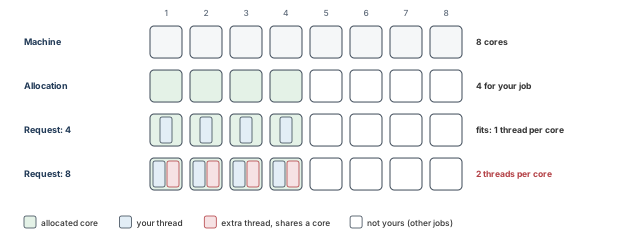
What to notice: In the last row, the four extra threads (red) squeeze onto the four allocated cores. They do not get cores 5 to 8. Whether other jobs suffer depends on how the site enforces limits.
If you request eight, four of those threads share cores with your own other threads. Depending on how the site enforces limits, they may also take time from other jobs. Your run may not get faster, and the scheduler or the site may stop it. The rule is simple: request what you were allocated, no more.
How do you find the allocation? The scheduler's own job information is the authority. Its commands and names are site-specific, so ask. On the machine itself, one command helps but does not tell the whole story.
$ nproc # honors some limits, such as a processor affinity list
8
nproc may not show every limit, for example a time-share quota. Ask the scheduler owner.
7.3 What else a CPU request touches
Check three things before you raise a CPU count.
- Allocation. Ask what the scheduler gives your job.
- Licenses. Extra CPUs may need multi-CPU licenses.
getMultiCpuUsageshows the CPU settings.getLicenseStatusshows the licenses held now.setLicenseCheckdoes not manage multi-CPU licenses, so ask your administrator. - Memory. A design needs a certain amount, and extra threads can add to it. Ask your project owner. Measure with
report_resource.
By default, CPU licenses stay held until the session ends. Two options of setMultiCpuUsage control this. -keepLicense (default true) holds the licenses until the session ends. -releaseLicense gives them back at once. Your site policy decides.
7.4 More CPUs are not proportionally faster
Doubling the threads does not halve the run time. Some work is serial. Threads share memory and disk.
Let us use a simple illustration. Suppose one tenth of a run cannot be parallel. With four CPUs, the best possible speedup is about 3.1 times. With eight CPUs, it is about 4.7 times. Figure 11 plots this.
These numbers come from a textbook formula, not from a measurement of Innovus. They only show the shape: each extra CPU buys less.
Multithreaded timing reports can also change their order between runs. When two paths have equal slack, the tool may list them differently. Compare slack values, not list positions.
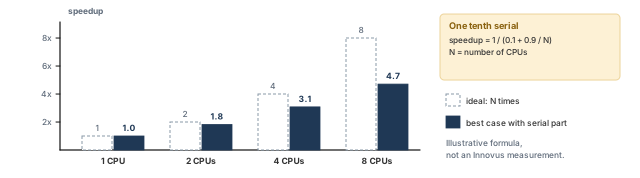
What to notice: Going from 4 to 8 CPUs doubles the request but raises the best case only from 3.1 to 4.7 times. The gap to the ideal bars grows with every CPU.
7.5 Looking at resource use
report_resource reports peak memory, CPU time and real time. It works on 64-bit Linux. Table 13 lists its forms. The label place_step is only an example; use any label, the same for both ends.
| Form | What it does |
|---|---|
report_resource -peak | Peak memory so far. |
report_resource -start place_step then report_resource -end place_step | Brackets one step. Use the same label for both. |
report_resource -end place_step -session_cpu | Adds CPU and real time to an -end measurement. The syntax puts -session_cpu after -end. It was not run for this guide, so confirm with help report_resource in your installation first. |
The option setMultiCpuUsage -threadInfo takes 0, 1 or 2. It sets how much thread detail goes in the log. Level 0 is the default and prints none.
7.6 Distributed processing, in short
Distributed and superthreading modes need two commands.
setDistributeHostsays where the client processes run, for example locally, over a remote shell, or through a scheduler.setMultiCpuUsage -remoteHostwith a number sets how many clients. For superthreading, add-cpuPerRemoteHostwith a number.
checkMultiCpuUsage tests the setup. Among other things it checks that the clients can reach the working folder. This matters because the folder must be visible from every machine.
setDistributeHost takes site-specific queue and resource strings. Get them from your administrator. Do not invent them. If you have no such infrastructure, skip this part.
Do not set -localCpu max on a shared machine. It takes every core the machine reports, and may break site policy.
You double the CPU count from 4 to 8 and the run is only 30 percent faster. Is something wrong?
Answer: Not necessarily. Speedup is not proportional. First check that the allocation really gives eight cores. Then measure with report_resource before you decide.
8 Logs, command records and exit status
After a run, you cannot see what happened. You can only read what it left behind. Knowing what each trace can and cannot prove protects you from false confidence.
Let us list the evidence a run can leave. For each trace we ask one thing: what question does it answer? Figure 12 pairs each trace with its question.
8.1 The three log files
At startup, Innovus creates three files from a prefix you give with -log. Table 14 lists them for the prefix startup.
| File | Holds | Use it to answer |
|---|---|---|
startup.log | Normal console output | What did the tool print? |
startup.cmd | Executed Tcl commands, unformatted | Which commands ran? Can I replay them? |
startup.logv | A superset with detail and time stamps | What happened underneath, and when? |
If a .log file with that name exists, the tool adds a number to all three names. Only the .log file is tested for this. The option -overwrite replaces existing files instead. The options -no_cmd and -no_logv skip the other two files. If you choose -overwrite, you choose to lose earlier evidence.
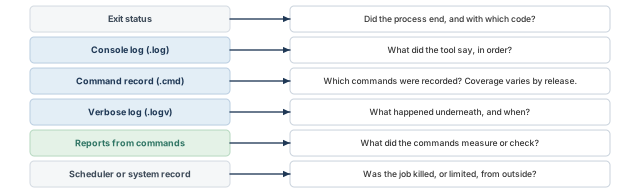
What to notice: Different sources fail in different ways. A trace you cannot find is a missing answer, not a "yes".
8.2 How complete is the command record?
The .cmd file holds executed Tcl commands. Do not read more into that than it says. Three limits matter.
- Sourced files. Whether the commands inside a sourced file appear in the command record is not established here. It depends on the release and on settings such as the source verbosity. Test it in your own session, with a tiny file, and write down what you see.
- Settings change the record. A global such as
gui_verbosecan reduce what is logged. Setting it tononemakes the.logand.cmdfiles incomplete. - A better record exists for debug. The command
start_resolverecords low-level commands into a separate replay file. It captures first-level commands. If one script sources another, the commands inside both are recorded, but not the sourcing structure.
Thus, treat the command record as helpful, not complete. Printed text is a different matter. A puts command that runs writes its text to the console output, which the .log file captures.
8.3 Reading a log safely
Search with context. A lone matching line hides what led to it.
$ grep -n -B3 -A3 "Error" run.log   # 3 lines of context; add -i to ignore case
$ tail -n 30 run.log                # last thirty lines: a stop leaves its last words
Here run.log is an example name; use your own log. For a message with an identifier, help or man followed by the message ID inside Innovus gives a summary. The man form can add causes and fixes for messages that have them.
8.4 Exit status
Every program ends with a number called its exit status. By convention, zero means success and other numbers mean something else. Each command defines its own meanings. For example, grep returns 1 when nothing matched, and that can be an expected answer. The shell stores the status of the last command in the variable $?.
$ ls /no/such/folder; echo "exit status: $?" # run, then print its status at once
ls: cannot access '/no/such/folder': No such file or directory
exit status: 2
A status is a single number. It tells you how the process ended. It does not tell you why, and it does not tell you whether the work was right.
8.5 Three places a run can fail, and what no status can see
A run can fail in three places, and each leaves different evidence. The fourth row of Table 15 is not a place of failure. It is the question that no exit status can answer.
| Where it sits | What happened | What shows it | What an exit status says |
|---|---|---|---|
| The wrapper or shell layer | The script that starts the tool failed before the tool ran | Messages from the shell or wrapper | A non-zero status from the wrapper, if it passes one on |
| Failure to start the tool | The file was not found, or the license was refused at once | A shell message, or an early log | Non-zero, or no log at all |
| The tool process exits | The tool ran and stopped, normally or on error | The log, and the exit status of the process | The status the tool chose |
| Task-level correctness (not a failure place) | The work did what you intended | Reports and checks you wrote | Nothing: a status cannot see this |
A zero exit status therefore proves one thing: the process ended with zero. It does not prove that the inputs were right or that reports exist. It does not prove that a step you meant to run was reached.
8.6 How a status gets lost
Between you and the tool there may be several programs, such as a build tool and a wrapper script. Each one has its own exit status. If any link discards the child's status, a failure looks like success. Figure 13 shows the most common case, a pipe.
$ false | cat; echo "status: $?"                         # reports the last command only
$ ( set -o pipefail; false | cat; echo "status: $?" )   # pipefail reports the failure
status: 0
status: 1
The parentheses run the second line in a subshell, so your own shell's options stay as they were.
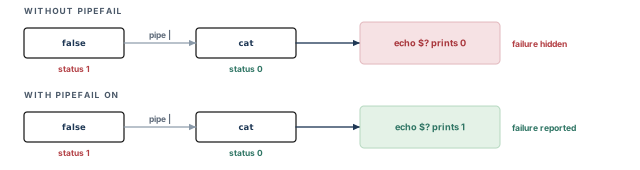
What to notice: The failing command is the same in both rows. Only the shell option changes which status reaches you.
Three habits hide a failure:
- Adding
|| trueto a command hides it deliberately. - Piping the tool into another program without
pipefailreports the wrong status. - Ending a script with a harmless command overwrites the status that mattered.
A careful wrapper saves the child's status on the very next line and returns it unchanged. The saving matters because $? describes only the most recent command: the next command replaces it. A variable such as rc, set by rc=$?, keeps its value until you assign it again.
The examples in this guide assume an interactive Bash terminal with the option errexit off. With it on, a deliberate failure could end the shell before you read the status.
8.7 Why "no ERROR in the log" does not prove success
Let us consider a log with no line that contains ERROR. Can you say the run passed? No, for five reasons.
- The tool may have stopped before it printed anything, for example on a license failure.
- The process may have crashed without a last message.
- Message wording and case vary. A search for one word misses others.
- A script may have printed its own text and ended early.
- The reports you expected may not exist.
Real evidence combines several traces: the exit status, the expected reports, and a read of the end of the log. A missing report is a failed check. The absence of an error word is not a passed check.
1. What does an exit status of zero establish, and what does it leave unanswered?
Answer: It establishes that the process ended with status zero. It does not show that every step ran, that the inputs were right, that reports exist, or that the result is correct. Those need reports and checks.
2. A log has no line containing "Error". List two other checks before you call the run healthy.
Answer: Check the exit status, and check that the expected reports exist. Reading the end of the log is a third check.
9 Reproducibility and readiness
A run you cannot repeat or explain is a one-off. Reproducible execution turns "it worked once" into evidence another engineer can check.
Let us start with the test. Can you answer four questions a week later, from files and not from memory?
- Which tool ran?
- With which inputs?
- With which settings?
- What did it print?
If you cannot, the run was a one-off. If you can, someone else can repeat it, compare it, and trust or question it.
9.1 Four habits that make a run reproducible
- Known settings. Choose settings on purpose, and state them, even when they equal the default. A default that comes from a startup file you forgot is not a known setting.
- Identifiable runs. Give every run its own identity, such as a date and time or a counter, and its own folder. Never reuse an identity. A reused identity overwrites the evidence of the earlier run.
- Preserved evidence. Keep the logs, the exit status, the reports and a record of what you asked for. Keep failed runs as well. A failed run next to a fixed run shows exactly what the fix changed.
- Explicit unresolved issues. Write down what you do not know. "Unknown" is a valid status. "Unknown" is not "pass". A gap you wrote down can be closed later. A gap you forgot becomes a surprise.
9.2 General principles and one team's choices
These four habits are general. How you carry them out is a local choice. Teams use time-stamped folders, counters, ticket numbers, or a workflow tool. The principle stays the same when the mechanism changes. Table 16 gives one way.
| Principle | One way to carry it out |
|---|---|
| Know which tool ran | Record the full path and the release string |
| Know the settings | Keep settings in one file, and record the command line |
| Identify the run | A unique name for each run folder |
| Keep the evidence | Logs and status in the run folder, never overwritten |
| State what is unresolved | A written list, with a status for each item |
9.3 What a successful startup establishes
Each row of Table 17 holds only if you measured it. A prompt alone does not tell you the release, the UI, the CPU setting or the temporary location.
| Established, if you recorded it | Not established |
|---|---|
| The intended executable ran | That every needed feature is licensed |
| The release string and the commands that worked, as you saw them | That the release suits your design flow |
| Folders were writable at the time | That space will last for a long run |
| The CPU request was accepted | That the allocation matches it, or that the run is faster |
| The process ended with the status you saw | That the work was correct |
| Evidence was written | That you read it carefully |
9.4 Recovering safely
When something fails, change one thing at a time. Record the cause before you fix it. Run again with a new identity so the failed run stays on disk.
Ask the right owner when the fix is not yours:
- a license needs the license administrator;
- a CPU limit needs the scheduler owner;
- a full disk needs the storage owner.
Takeaway A clean start is evidence that a session can start. It is not evidence that a design is correct. It does not show timing closure, routability, power connectivity or signoff, and it does not replace the checks of later chapters.
9.5 Check your understanding
Try each question before you read the answer. The questions need no files and no tool.
1. Why can startup succeed without proving design readiness?
Answer: Startup shows that a session can run. It does not, by itself, load or check a design. A startup file could run other work, so look at the startup files. A design needs its own inputs, loaded and examined.
2. Why does changing the working folder change what a relative path means?
Answer: The system resolves a relative path from the folder where the process runs. A different folder gives a different starting point, so the same text can reach another file or none.
3. A request for eight CPUs runs on an allocation of four. Name two consequences.
Answer: Threads compete for cores, so the run may gain little or nothing. Other jobs on the host may slow down, depending on how the site enforces limits, and site policy may be broken.
4. Two engineers run the same script on the same inputs and get different results. Name two environment causes.
Answer: A different startup file may change settings first. A different release or UI may be on the search path. Different working folders or temporary locations are other possible causes.
5. Why should a failed run keep its folder?
Answer: It is evidence. A failed run beside a corrected run shows what changed. Overwriting it removes that comparison.
Part II - Lab: applying the concepts
Part II applies the ideas of Part I in a short, separate lab. You do not need it to understand Part I, but Part I makes the lab easier. The lab needs this guide, an interactive Bash terminal and a text editor. Nothing else comes with it. The lab teaches no new idea. It asks you to watch the ideas of Part I behave, and to write down what you saw. Each step points back to the section it applies.
10 Lab overview
Ideas stay abstract until you see them behave. A small lab turns "a request is not an allocation" and "status zero is not a verdict" into things you have seen.
10.1 Lab at a glance
| Item | Content |
|---|---|
| Goal | Prepare one Innovus startup on purpose, in a folder of its own, and keep what you requested apart from what you observed. No design is loaded. |
| Outcomes | Inspect your shell side. Write one Tcl file. Run a missing-executable check. On Track B only: choose and test an executable, start the tool once, and read what it left. Fill the worksheet. |
| Prerequisites | A 64-bit Linux host with Bash and an editor. For Track B, an Innovus you may use in the Legacy UI, and the answers from your administrator (see Table 5). |
| Files you create | One Tcl file, and one small Tcl file for an optional error check. You type both from this guide. |
| Finish | The worksheet, each row marked PASS, FAIL, UNKNOWN or NOT PERFORMED, and one of three completion levels. |
This chapter was written without a licensed Innovus. The shell blocks were run against a stand-in program. The Tcl file ran under a plain Tcl interpreter with stub commands. No block here shows real Innovus output. Blocks headed ILLUSTRATIVE OUTPUT are examples, and your output will differ. Section 13.1, What kind of evidence supports each claim, lists exactly what was checked and how.
10.2 Two tracks, and exactly what each one runs
Track A has no licensed tool. You inspect your shell and folders, you may write the Tcl file as text, and you run the missing-executable check. You never start Innovus. So you never run the Tcl file, and you do not claim that it was validated.
Track B has a licensed tool. You do everything in Track A. You also choose and test an executable, start Innovus once, and read what it wrote. Track B includes the missing-executable check as a required part. Table 19 lists every step.
| Step | What it is | Track A | Track B |
|---|---|---|---|
| 1 | Lab folder and shell inspection | Run | Run |
| 2 | Choose and test the executable | Skip | Run |
| 3 | Write the Tcl file | Run, as text only | Run |
| 4 | Start one session | Skip | Run |
| 5 | Read the evidence | Skip | Run |
| 6 | Missing-executable check | Run | Run, required |
| 7 | Tcl error check | Skip | Optional |
| Worksheet | Evidence worksheet | Part A only | Parts A and B |
10.3 Where each idea shows up
| Idea from Part I | Where the lab shows it |
|---|---|
| Layers and who reports a failure | Step 6: the shell speaks, no tool starts |
| Installation, environment, license | Step 2, and the license output read in Step 5 |
| Search path, release and UI | Steps 1 and 2: what the shell finds, then one absolute path |
| Working folder, startup files, temporary storage | Steps 1 and 4: the run folder and the startup-file checks |
| Execution modes | Step 4: a batch start with no window |
| CPU request versus allocation | Steps 3 and 5: request in the file, setting in the log |
| Logs, command record, exit status | Steps 4 and 5 |
| Reproducibility and readiness | A new folder per run, the saved command, the worksheet |
Table 20 maps each idea to a step. Figure 14, after the next table, shows the seven steps and their evidence.
10.4 Three kinds of check, kept apart
| Kind | What it is | What it can prove | What it cannot prove |
|---|---|---|---|
| Shell-side check | Commands run in Bash with no tool | Your folders, search path and status handling behave as you read | That Innovus starts, or that any license exists |
| Mock or stand-in test | A stand-in program imitates the tool | That the shell and Tcl logic is written as intended | How the real tool behaves. A stand-in is never Innovus |
| Licensed execution | Your own Innovus starts | That one startup was attempted, and what it left behind | That a design is ready, or that every feature is licensed |
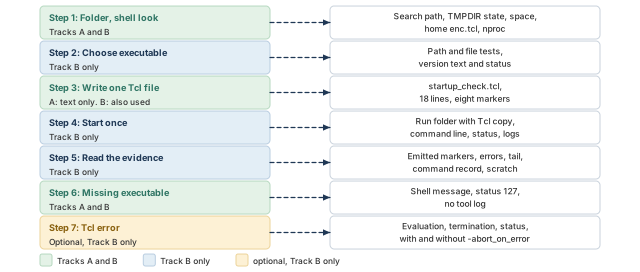
What to notice: Track A runs steps 1, 3 and 6, the green cards marked "Tracks A and B" or "A: text only". Track B runs all of them. Every run gets a folder of its own.
11 Lab steps
Now we do it. For each step we say why we need it, we run it, and we check what we see.
Every block below says which track runs it. A Track A reader who sees "Track B only" simply moves to the next heading. Skipping is not failing.
- Open a fresh interactive Bash terminal and use it for the whole lab.
- Every block below holds commands only: no
$, no output, no line numbers. Copy a block whole and paste it. - Lines that start with
#are comments. Paste one block at a time, in order. - Where a value says "replace", change the text inside the quotes first.
- Each block that builds on an earlier one tests that earlier work and prints
STOPif it is missing.
Your terminal must not have the shell option errexit (set -e) switched on. With it on, a deliberate failure in Step 6 could end the terminal before the status is saved. The next block tells you.
# Report whether errexit is on in this shell. A fresh terminal is off.
case "$-" in
  *e*) echo "errexit is ON: open a fresh terminal before you go on" ;;
  *)   echo "errexit is off: OK" ;;
esac
11.1 Step 1: a lab folder, and a look at your setup (both tracks)
Now we need a folder of our own and a look at the shell we are in. We do this first because everything later depends on it. This step applies the search-path and working-folder sections.
# Choose the lab folder. LAB stays set only if the folder is ready.
LAB="$HOME/innovus_lab1"
if mkdir -p "$LAB" && cd "$LAB"; then
  LAB="$PWD"
  echo "lab folder ready: $LAB"
else
  unset LAB
  echo "STOP: could not create or enter the lab folder."
  echo "Fix that before you run any later block."
fi# Do the inspection only if the lab folder is ready. if [ -n "${LAB:-}" ] && [ -d "$LAB" ]; then # Show the search path, one folder per line, in search order. echo "$PATH" | tr ':' '\n' # Say whether TMPDIR is unset, empty or set. if [ -z "${TMPDIR+x}" ]; then echo "TMPDIR is unset" elif [ -z "$TMPDIR" ]; then echo "TMPDIR is set but empty" else echo "TMPDIR=$TMPDIR"; fi # Show free space, in kilobytes, for the lab folder. df -Pk "$LAB" # Look for a personal startup file in your home folder. if [ -e "$HOME/enc.tcl" ]; then ls -l "$HOME/enc.tcl"; echo "read it before you trust a session" else echo "no personal startup file in your home folder" fi # Count the processors this shell may use. This is not an allocation. nproc else echo "STOP: the lab folder is not ready. Run the previous block." fi
Now we ask the shell what it would run for the name innovus. Finding nothing is a valid answer, not a failure.
# Show what Bash would run for the name. It prints nothing if none.
if command -v innovus; then
  # Show every match in order, including aliases and functions.
  type -a innovus
else
  echo "no innovus on this shell's search path: record it as found-none"
fi
You see your search path, the TMPDIR state, free space, and whether a personal enc.tcl exists. Write each down.
- Track A: "found-none" is a complete, correct observation. It tells you the shell has no tool to run. That is why Track A stops short of a licensed startup. It is not an error.
- Track B: a name on the search path does not choose a release. Step 2 picks one file by its full path. If the search-path result and your chosen path differ, record both.
TMPDIRhere is only an environment value. The session folder goes in the launch folder, or/tmp;FE_TMPDIR, thenTMPDIR, apply to extraction files.
11.2 Step 2: choose the executable and test it (Track B only)
Track A: skip to Step 3. Track B: now we need to know which Innovus we will run. We name the file with its full path and test it before we use it. If your site needs a module or a setup script first, do that in this terminal and write down which one. This step applies the license and search-path sections.
# Replace the text in quotes with the full path from your administrator.
INNOVUS_BIN="/replace/with/full/path/to/innovus"# Accept the path only if every test passes. INNOVUS_OK records it.
INNOVUS_OK=no
case "${INNOVUS_BIN:-}" in
"")
echo "STOP: INNOVUS_BIN is empty or not set" ;;
/replace/*)
echo "STOP: the placeholder is unchanged. Replace it." ;;
/*)
if [ -d "$INNOVUS_BIN" ]; then echo "STOP: that is a directory"
elif [ ! -e "$INNOVUS_BIN" ]; then echo "STOP: no such file"
elif [ ! -f "$INNOVUS_BIN" ]; then echo "STOP: not a regular file"
elif [ ! -x "$INNOVUS_BIN" ]; then echo "STOP: you cannot run it"
else INNOVUS_OK=yes; echo "executable accepted: $INNOVUS_BIN"
fi ;;
*)
echo "STOP: not an absolute path. It must start with /" ;;
esacA printed warning alone would not stop the next block. So each later block tests INNOVUS_OK itself. If the block above printed STOP, fix INNOVUS_BIN and paste it again.
# Ask the chosen file for its version, only if it was accepted.
if [ "${INNOVUS_OK:-no}" = yes ] && cd "${LAB:-/nonexistent}"; then
  # Prove the evidence file can be written before the program starts.
  if : > "$LAB/version_output.txt"; then
    "$INNOVUS_BIN" -version > "$LAB/version_output.txt" 2>&1
    version_status=$?
    echo "version command status: $version_status"
    cat "$LAB/version_output.txt"
  else
    echo "STOP: cannot write $LAB/version_output.txt"
  fi
else
  echo "STOP: no accepted executable, or no lab folder. Skipped."
fi
The version text names the release your file belongs to. A status of zero says only that the process ended with zero. The -version option returns version information. It does not prove that a license is available. A failed call is itself a result to write down. The chosen path, not the search-path guess, is what every later run uses.
11.3 Step 3: write one short Tcl file (both tracks)
Now we need something for the tool to run. One short file asks the session who it is, requests a CPU count, and prints what the session reports. A request and an observation stay on separate lines. This step applies the CPU section. Table 22 summarizes the file before we write it.
| Item | Content |
|---|---|
| Why we need it | It is the smallest useful startup test. It prints a request and then the matching reports, so they stay apart. |
| What is inside | Eight marker lines STARTUP_MARKER_1 to STARTUP_MARKER_8, getVersion, one setMultiCpuUsage request, getMultiCpuUsage, getLicenseStatus and a TMPDIR check. |
| Interpreter | Innovus Tcl, Legacy UI. A standard Tcl interpreter cannot run it. |
| What it reads | The environment variable CPUS, if set, and TMPDIR. |
| What it changes or writes | One setting, the local CPU count. It writes no file. Output goes to the console, which the tool also writes to its log. |
| Prerequisites | Step 1 done. Track B runs it only through Step 4. |
| How to run it | Track B copies it into each run folder and launches that copy through -files. Track A does not run it. |
| What the result proves | The session printed a release, accepted a CPU request and printed what it reports. It does not prove an allocation. |
| Left for you | Compare the CPU line with your scheduler allocation. Read the license output. |
# Choose a whole number. Track B: use your scheduler allocation.
CPUS=2
# Accept digits only, one or more. Reject empty, zero, leading zero.
case "$CPUS" in
  ''|*[!0-9]*|0|0[0-9]*)
    CPUS_OK=no; echo "STOP: CPUS must be a whole number, 1 or more" ;;
  *)
    CPUS_OK=yes; export CPUS; echo "CPUS=$CPUS accepted" ;;
esac
Track A: you create this file as text only. You cannot run it, because it uses Innovus commands that a standard Tcl interpreter does not have. Do not call it validated.
Three Tcl rules help you read the file below.
- Square brackets run a command and use its result, so
[getVersion]is replaced by the release string, whichputsthen prints. - Braces keep text unsubstituted while the command's arguments are formed. The command that receives the braced text, such as
if, then decides when to evaluate it. info existsasks whether a variable is there. The wordputsprints.
# Write the Tcl file only if CPUS and the lab folder are good.
# The quoted EOF stops the shell from changing the Tcl text.
if [ "${CPUS_OK:-no}" = yes ] && cd "${LAB:-/nonexistent}" &&
    cat > startup_check.tcl <<'EOF'
# startup_check.tcl -- Innovus Tcl, Legacy UI.
puts "STARTUP_MARKER_1 begin"
puts "STARTUP_MARKER_2 version: [getVersion]"
puts "STARTUP_MARKER_3 working folder: [pwd]"
set cpus 1
if {[info exists ::env(CPUS)]} { set cpus $::env(CPUS) }
puts "STARTUP_MARKER_4 requested CPUs: $cpus"
setMultiCpuUsage -localCpu $cpus
puts "STARTUP_MARKER_5 reported CPU setting:"
getMultiCpuUsage -localCpu
puts "STARTUP_MARKER_6 licenses held now:"
getLicenseStatus
if {[info exists ::env(TMPDIR)]} {
  puts "STARTUP_MARKER_7 TMPDIR: $::env(TMPDIR)"
} else {
  puts "STARTUP_MARKER_7 TMPDIR: unset"
}
puts "STARTUP_MARKER_8 end"
EOF
then
  echo "wrote $LAB/startup_check.tcl"
  wc -l startup_check.tcl
else
  echo "STOP: the Tcl file was not written."
  echo "Check Step 1 (LAB) and the CPUS block, then paste this again."
fi
The file has 18 lines, and wc -l should say so. The marker names are for you: they make a log easy to search. getMultiCpuUsage and getLicenseStatus print in a layout your release decides, so the file does not try to format them.
The meaning of getMultiCpuUsage -localCpu is ambiguous: requested count or available count. So we read its output as the setting the session recorded, and nothing more. Confirm with help getMultiCpuUsage in your installation.
11.4 Step 4: start one session (Track B only)
Track A: skip to Step 6.
Now we start the tool once. Each run gets a new folder with its own copy of the Tcl file. We launch that copy, so the folder holds exactly what ran. This step applies the working-folder, execution-mode and log sections.
# Make a new run folder and copy the Tcl file into it. Check each step.
RUN_OK=no
if [ "${INNOVUS_OK:-no}" = yes ] && [ "${CPUS_OK:-no}" = yes ] &&
   [ -f "${LAB:-/nonexistent}/startup_check.tcl" ]; then
  RUN="$LAB/run_$(date +%Y%m%d_%H%M%S)"
  if mkdir "$RUN" && cp "$LAB/startup_check.tcl" "$RUN/" && cd "$RUN"; then
    RUN_OK=yes
    echo "run folder ready: $RUN"
  else
    echo "STOP: could not prepare $RUN. Keep it, and try again."
  fi
else
  echo "STOP: Steps 1 to 3 are not complete. Nothing was started."
fi
Now we check for startup files, because a startup file can change a session without being named in your command. A Legacy UI session reads, in order:
- an installation file that your CAD team owns (
etc/innovus/enc.tclinside the install folder); - then
~/enc.tclin your home folder; - then
./enc.tclin the folder you launch from.
The two personal files are not the whole list. You cannot inspect the installation file unless you know where it is, so ask your CAD owner.
A fresh run folder normally has no ./enc.tcl. So a clean result there says nothing about your home folder or the installation file. Do not delete or rename a startup file to make a run look clean: someone else may depend on it.
The -disable_user_startup option skips ~/enc.tcl and ./enc.tcl; the installation enc.tcl is still read. Using it is a decision for the project owner, because it also switches off settings your project may rely on. This lab does not use it.
# Check the launch folder itself, the one the tool will start in.
if [ "${RUN_OK:-no}" = yes ] && cd "$RUN"; then
  echo "launch folder: $PWD"
  if [ -e ./enc.tcl ]; then ls -l ./enc.tcl; echo "READ it first"
  else echo "no ./enc.tcl in the launch folder (normal for a fresh one)"
  fi
  if [ -e "$HOME/enc.tcl" ]; then echo "home enc.tcl exists: see Step 1"
  else echo "no enc.tcl in the home folder"
  fi
else
  echo "STOP: the run folder is not ready."
fi
Let us read the launch line in the next block first.
-legacy_uinames the UI.-no_guineeds no display.-batchends the session once the options are processed.-log startupnames the log filesstartup.log,startup.cmdandstartup.logv.-filesnames the Tcl file to source.
# Launch the copy inside the run folder, not the original.
if [ "${RUN_OK:-no}" = yes ] && cd "$RUN" &&
   [ -f startup_check.tcl ]; then
  # Build the launch line as a list, so every argument stays whole.
  cmd=( "$INNOVUS_BIN" -legacy_ui -no_gui -batch -log startup
        -files "$RUN/startup_check.tcl" )
  # Save the exact line first. If that fails, do not start the tool.
  line="CPUS=$CPUS $(printf '%q ' "${cmd[@]}")"
  if echo "$line" > command_line.txt; then
    echo "command line saved"
    # Start the tool. It reads the file, then ends by itself.
    "${cmd[@]}"
    rc=$?
    if echo "tool_status=$rc" > exit_status.txt; then
      echo "attempt finished; saved tool_status=$rc"
    else
      echo "WARNING: exit_status.txt NOT written; the status was $rc"
    fi
  else
    echo "STOP: could not save the command line. Tool not started."
  fi
else
  echo "STOP: the run folder is not ready. Tool not started."
fi
The saved line starts with CPUS= and your value, so it replays the environment too. We chose none of -abort_on_error, -cpus or -overwrite, so this run does not depend on them.
The variable rc holds the status until you assign it again. $? does not wait: the next command changes it, which is why we copy it on the very next line. A failed save stops the launch. A failed tool does not stop the saving of its status.
We wrote "attempted", not "succeeded". A started process, a status of zero and a log file are three separate facts. A run that fails still earns a folder, and you keep it. Step 5 reads what the folder holds.
11.5 Step 5: read the evidence (Track B only)
Track A: skip to Step 6.
Now we read what the run left behind. We ask each file one question and keep four answers apart: matched, read with no match, missing or unreadable, and search failed.
Only a file we have actually read can support "marker absent". A small helper keeps the four answers apart, as Figure 15 shows. First we define it.
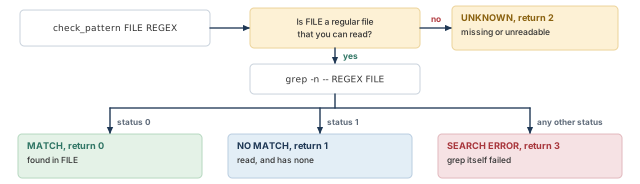
What to notice: UNKNOWN comes before any search. A grep status other than 0 or 1 becomes SEARCH ERROR, never NO MATCH.
# check_pattern FILE REGEX searches FILE and prints one of four verdicts.
# Return value: 0 readable and matched   1 readable, no match
#               2 missing or unreadable 3 the search itself failed
check_pattern () {
  local s
  if [ ! -f "$1" ] || [ ! -r "$1" ]; then
    echo "UNKNOWN: $1 is missing or unreadable"
    return 2
  fi
  grep -n -- "$2" "$1"
  s=$?
  case "$s" in
    0) echo "MATCH: found in $1"; return 0 ;;
    1) echo "NO MATCH: $1 was read and has none"; return 1 ;;
    *) echo "SEARCH ERROR: grep status $s on $1"; return 3 ;;
  esac
}
The function exists only in this terminal and does nothing until called. Its return statements are inside the function, so they end the function, not your terminal.
# Read the evidence in the run folder.
if [ "${RUN_OK:-no}" = yes ] && cd "$RUN"; then
  ls
  echo "--- saved command and status"
  cat command_line.txt exit_status.txt
  echo "--- emitted markers in the console log"
  if check_pattern startup.log '^STARTUP_MARKER_[0-9]'; then
    n=$(grep -o '^STARTUP_MARKER_[0-9]' startup.log | sort -u | wc -l)
    echo "distinct emitted markers: $n of 8"
  fi
  echo "--- error lines"
  check_pattern startup.log '[Ee][Rr][Rr][Oo][Rr]'
  echo "--- the last lines of the log"
  if [ -r startup.log ]; then tail -n 25 startup.log
  else echo "UNKNOWN: startup.log is missing"; fi
  echo "--- the command record"
  check_pattern startup.cmd 'STARTUP_MARKER'
  echo "--- a temporary folder left in the launch folder"
  ls -d innovus_temp_* 2>/dev/null || echo "none left"
else
  echo "STOP: the run folder is not ready."
fi- Emitted, not echoed. The pattern is anchored at the line start. It finds markers the console printed, not Tcl source lines. Read the matching lines, because the layout depends on the release.
- Missing markers. A missing marker means the console did not print it. It does not show where execution stopped. A Tcl error can leave later markers out while the process still ends.
- Read the rest yourself. Marker 4 is your request. The lines after marker 5 are the setting the session reports, and after marker 6 the licenses held now. Compare the CPU setting with your scheduler record: they are different facts.
- The command record. Which commands
startup.cmdlists depends on your release and settings. If it was read and has no marker, write "marker absent in a readable.cmd". That is an observation, not proof the markers never ran. - If the file is missing, or an older log forced numbered file names, write UNKNOWN, not "absent".
- Scratch. The
innovus_temp_...folder is removed on a normal exit, so none may be left. If none is left, the scratch location was not observed: write UNKNOWN. TheTMPDIRline shows an environment value only.
11.6 Step 6: the missing-executable check (both tracks, required for Track B)
Now we make a start fail on purpose. We name a program that does not exist, in a new disposable folder, so no site setup can make it exist. This step applies the layers section.
# Do the check only in a fresh folder, and only if the name is unused.
if [ -n "${LAB:-}" ] && cd "$LAB"; then
  DRILL="$LAB/drill_$(date +%Y%m%d_%H%M%S)"
  BAD="/no/such/folder/innovus"
  if [ -e "$BAD" ]; then
    echo "STOP: $BAD exists here. Set BAD to a path that does not."
  elif mkdir "$DRILL" && cd "$DRILL"; then
    # Start the missing program as in Step 4. The shell answers.
    "$BAD" -legacy_ui -no_gui -batch -log startup
    shell_status=$?
    if echo "shell_status=$shell_status" > drill_status.txt; then
      echo "saved shell_status=$shell_status"
    else
      echo "WARNING: drill_status.txt NOT written; status $shell_status"
    fi
    # List the folder. No tool log should be there.
    ls
  else
    echo "STOP: could not create the check folder."
  fi
else
  echo "STOP: the lab folder is not ready."
fi
bash: /no/such/folder/innovus: No such file or directory
saved shell_status=127
drill_status.txt
Thus, the shell spoke. No Innovus process started, and no startup.log was written; only our status file is in the folder. Status 127 comes from the shell, not from a tool. This check tests a refused launch. It does not test what Innovus does with a Tcl error, which is Step 7.
11.7 Step 7: an intentional Tcl error (optional, Track B only)
Track A: skip to the evidence worksheet.
Now we ask a different question: what happens when a command inside a running tool fails? A tool that starts and then meets a bad command is a process. A missing executable never was one.
We run one bad Tcl file twice, once with -abort_on_error and once without. For each run we record three things separately, as the callout below lists. This step applies the execution-mode and exit-status sections.
For each run, write down three separate observations:
- Evaluation: which markers the console printed.
- Termination: whether the process ended by itself.
- Status: the number in
tool_status.txt.
A top-level Tcl error can stop the evaluation of a Tcl file even when no abort option is given. So a missing marker 2 in both runs does not alone show whether -abort_on_error changed anything about the process.
The option makes the process exit when a command returns an error to the top level. Its exit status is not known here, and this chapter does not guess it. If a run does not end by itself, press Ctrl-C in that terminal and write "did not end". Do not report a status you did not get. Until you run this on a licensed tool, the row stays NOT PERFORMED.
# Write a tiny Tcl file with one command that does not exist.
if cd "${LAB:-/nonexistent}" &&
    cat > bad_command.tcl <<'EOF'
puts "ERRDRILL_MARKER_1 before the error"
thisIsNotAnInnovusCommand
puts "ERRDRILL_MARKER_2 after the error"
EOF
then echo "wrote bad_command.tcl"
else echo "STOP: bad_command.tcl was not written"; fi# err_run LABEL [tool options] runs the bad file once in a new folder. # Return value: 0 the tool ran and its status was saved; # 3 the tool ran, but its status could not be saved; 1 setup failed, tool NOT started # The tool's own status is saved in tool_status.txt, never returned. err_run () { local label="$1" d rc line result=0 shift if [ "${INNOVUS_OK:-no}" != yes ] || [ ! -f "${LAB:-/x}/bad_command.tcl" ]; then echo "setup incomplete: tool not started"; return 1 fi d="$LAB/err_${label}_$(date +%Y%m%d_%H%M%S)" if ! mkdir "$d" || ! cp "$LAB/bad_command.tcl" "$d/"; then echo "could not prepare $d: tool not started"; return 1 fi if ! pushd "$d" > /dev/null; then echo "could not enter $d: tool not started"; return 1 fi local args=( "$INNOVUS_BIN" -legacy_ui -no_gui -batch "$@" -log errdrill -files "$d/bad_command.tcl" ) line=$(printf '%q ' "${args[@]}") if ! echo "$line" > command_line.txt; then echo "could not save the command line: tool not started" popd > /dev/null; return 1 fi "${args[@]}" > console.txt 2>&1 rc=$? if echo "tool_status=$rc" > tool_status.txt; then echo "$label: tool_status=$rc (saved in $d)" else echo "$label: tool_status=$rc (NOT saved: write failed)"; result=3 fi popd > /dev/null return $result }
The helper keeps console.txt, so no tool message is lost. rc is copied before popd, so popd cannot change it. The helper returns its own status; the tool's status is only in the file and the printed line.
# Run once with the option that ends the run on an error, once without.
err_run abort -abort_on_error; echo "helper status: $?"
err_run plain; echo "helper status: $?"# Read both runs. This uses check_pattern from Step 5.
for d in "$LAB"/err_abort_* "$LAB"/err_plain_*; do
if [ -d "$d" ]; then
echo "=== $d"
cat "$d/tool_status.txt" 2>/dev/null || echo "UNKNOWN: no saved status"
check_pattern "$d/errdrill.log" '^ERRDRILL_MARKER_[0-9]'
fi
done12 Evidence worksheet and completion
Fill the form below, or copy it into your notes. Fill a row only from evidence you can open. Requested or expected is what you asked for; Observed is what a file or a command showed. Table 23 defines the four status words.
| Status | Meaning |
|---|---|
| PASS | You performed the check, and the evidence meets the expected condition. |
| FAIL | You performed the check, and the evidence shows the expected condition was not met. |
| UNKNOWN | Your evidence cannot settle it: a file is missing, unreadable, or not about the question. |
| NOT PERFORMED | You did not attempt the check. |
12.1 Part A: shell-side rows (both tracks)
| Check | Requested / expected | Observed | Evidence location | Status | Unresolved action |
|---|---|---|---|---|---|
| Shell baseline | Interactive Bash, errexit off | first block | |||
| Lab folder | Created and entered | Step 1 output | |||
| Search path | Record what innovus resolves to, or none | Step 1 output | |||
TMPDIR value | Record unset, empty or set | Step 1 output | |||
| Free space | Enough for logs | Step 1 output | |||
| Home startup file | Record whether ~/enc.tcl exists | Step 1 output | |||
| Tcl file written | 18 lines, text only on Track A | Step 3 line count | |||
| Missing-executable check | Shell status 127, no tool log | Step 6 status file |
12.2 Part B: licensed-tool rows (Track B only)
| Check | Requested / expected | Observed | Evidence location | Status | Unresolved action |
|---|---|---|---|---|---|
| Executable accepted | Absolute, regular, runnable | Step 2 output | |||
| Version query | Attempted; status and text kept | Step 2 version file | |||
| Launch and exit status | Line and status saved | Step 4 saved line and status | |||
| Log files | .log, .cmd, .logv exist | run folder listing | |||
| Startup observed | Markers 1 to 8 emitted | run folder log | |||
| Release and UI | A release line; Legacy UI commands accepted | marker 2 | |||
Launch-folder enc.tcl | ./enc.tcl state recorded | Step 4 output | |||
| Requested CPUs | The CPUS value | marker 4 | |||
| CPU setting reported | Matches request, or difference explained | after marker 5 | |||
| Scheduler allocation | Compared with the request | scheduler record | |||
| Licenses held | License output present | after marker 6 | |||
TMPDIR value (tool side) | Matches the shell value | marker 7 | |||
| Observed scratch location | The folder the tool used | temp folder | |||
| Command record | MATCH / NO MATCH / UNKNOWN / SEARCH ERROR recorded | .cmd file | |||
| Tcl error check (optional) | Three observations per run | Step 7 |
12.3 Completion
Some cases look alike:
- A required file that you know is missing is a FAIL for "does it exist", and its contents stay UNKNOWN.
- A licensed check you skipped is NOT PERFORMED, not PASS.
- "Marker absent in a readable
.cmd" is a valid observation, but it does not claim the file covers every command. - A startup that failed is a completed learning exercise, and it is not a validated startup.
There are three levels, and they are not the same thing. Say which one you reached. Figure 16 stacks them.
- Exercise attempted and assessed. You ran the steps your track allows. Every row has a status, and every row that is not PASS has an action. A startup that failed can reach this level. It does not reach the third.
- Shell-side checks completed. Part A is filled and its rows are PASS, or FAIL with the cause understood. On Track A this is the highest level there is. Write: "Shell-side exercise completed. Licensed startup not performed."
- Licensed startup observed and validated. Track B only. All of Step 6 is done. Part B shows the criteria below met, with evidence you opened. "Every row has some status" is not this level.
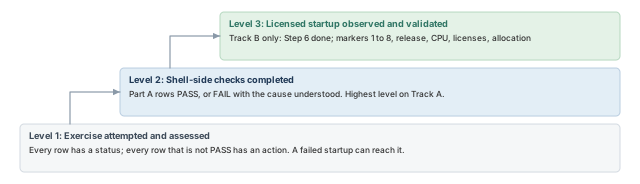
What to notice: A failed startup can still reach level 1. "Every row has some status" is level 1, not level 3.
The level 3 criteria are:
- the executable accepted;
- the command line and status saved;
- the
.logreadable, with markers 1 to 8 emitted; - a release line reported;
- a CPU setting printed that matches the request, or a difference you can explain;
- license output present, and no unexplained error lines in the log;
- the scheduler allocation compared, or marked NOT PERFORMED with a reason.
12.4 What this lab does not prove
- It does not show timing closure, routability, power connectivity or signoff.
- It does not show that a real design imports. That is the next chapter.
- A stand-in run of these commands is not Innovus. Do not report it as such.
- The Ctrl-C and scheduler-kill behavior of a real session was not tested here.
- Release and license details are site-specific. Ask your administrator.
Go to the next chapter when you know your executable path, your release, and your CPU request and allocation. If you do not know one, write NOT PERFORMED beside it. A chapter can be read without a licensed tool. A real import cannot run without one.
13 Troubleshooting and evidence classes
Most startup failures have a short list of causes. Look first, then change one thing at a time, and ask the right owner. In Table 26, the first-check column only observes. The recovery column changes something, so do it after you have written the first check down.
| Symptom | Likely causes | First check (observes only) | Recovery (changes something) | Owner |
|---|---|---|---|---|
command not found or No such file | Wrong path, module not loaded, typo | command -v, ls -l on the path | Load the module, fix the path | You or CAD |
Permission denied | Not executable, or not yours to run | ls -l on the file | Ask for access | CAD |
| Starts, then ends with a license message | No free base license, server unreachable, wait of 0 | Read the first lines of the log | Fix license setup, or wait | License admin |
invalid command name | Misspelled command, or a command of the other UI | Check the UI, then the spelling | Fix the script | You |
| Hangs with no output | No input attached, or waiting for a license | Read the end of the log | No input: start with -batch. License wait: ask the license admin, and check the -wait value | You or License admin |
| Write error, or early stop | Folder full or read-only | df -Pk, ls -ld on the folders | Free space, change folder | Storage |
| Differs from a colleague | Startup file, other release, other folder | Compare enc.tcl files, path, version | Align them | Both |
| Slow, or job killed | Request above allocation, memory limit | Compare marker 4 with the scheduler | Lower the request | Scheduler |
| Status zero, no useful output | Script ended early, status lost, wrong files | Count emitted markers, read the log end | Fix the script | You |
When something fails: record the cause, change one thing, run again in a new folder, and keep the failed folder.
13.1 What kind of evidence supports each claim
Five classes of evidence are kept apart in this chapter. A claim carries only the class it earned, as Table 27 shows. Where a statement here differs from your release, your release is right. Check the same topics with -help and help in your own installation, and note any difference in the worksheet.
| Class | Meaning | In this chapter |
|---|---|---|
| Checked against tool help | Read in the tool's command help | Launch options, startup files, temporary folders, CPU commands, license commands |
| Shell-tested locally | Bash blocks run in a scratch folder | Every block in Steps 1 to 7, with a stand-in program for the tool in Steps 2, 4, 5 and 7 |
| Stand-in or mock | A stand-in program, and Tcl with stub commands | The launch, status and evidence logic |
| Licensed Innovus observed | A real tool ran and was read | None |
| Unverified or release-dependent | Not shown by either test | Exact log wording; what .cmd records for a sourced file; the exit status after a Tcl error; what -batch does after an error; the CPU count the tool uses when the request is too high; where scratch files land at your site |
14 Interview preparation
Five: you, the shell, the executable, the tool process and the Tcl interpreter inside it.
- The shell finds the file; nothing runs yet.
- The process checks licenses, reads startup files and opens logs.
- Each layer prints its own kind of message.
command not found in one case and invalid command name in another. What does each tell you?The first comes from the shell, so the tool never started; the second comes from a Tcl interpreter that answered.
- At an Innovus prompt, the Tcl answer means the tool is running.
- The command is then misspelled, or belongs to the other UI.
Installation, environment and license, each with its own check and owner.
- Installation: the program runs and prints its version.
- Environment: the shell resolves the name you type.
- License: a base license is available to you; ask the license administrator.
type -a innovus prints two paths and your test passed with the second. What is the risk?The shell runs the first path, so a later job starts a release you never tested.
- Fix the search path, or run the tested file by its full path.
- Record the full path that actually ran.
PATH and why a recorded path is evidence.Not safely: the two command sets are not interchangeable.
- Legacy uses camel-case commands and
init_*variables; Common UI uses attributes withset_db. - Name
-legacy_uior-stylusat every launch, and never translate syntax by guessing.
At the startup files, then the release on the search path, then the working folder.
- The Legacy UI reads the installation
enc.tcl, then~/enc.tcl, then./enc.tcl. - A personal file can change a setting without a trace in the script.
-disable_user_startupskips~/enc.tcland./enc.tcl; the installationenc.tclis still read. Using it is the project owner's decision.
TMPDIR move the session's temporary folder?No: the session folder goes in the launch folder, or /tmp if that is not writable; confirm on your release.
FE_TMPDIR, thenTMPDIR, apply to the temporary files of parasitic extraction.- Confirm on your release by starting a session in a fresh folder and looking for
innovus_temp_.
It was likely started interactively with no input attached, so it waits for typing that never comes.
- Use
-batchwith-no_guifor unattended work. - Give the commands through launch options or a script file.
Threads compete for the four cores, so the run may gain little, and site policy may stop the job.
- A request is what you ask for; an allocation is what you were given.
- Other jobs may suffer, depending on how the site enforces limits.
- Request what you were allocated, no more.
Not necessarily: speedup is not proportional, because some work is serial.
- With one tenth serial, the best case is about 3.1 times at four CPUs and 4.7 times at eight.
- Confirm the allocation really gives eight cores, then measure with
report_resource.
-log startup create, and what does -overwrite cost you?startup.log, startup.cmd and startup.logv; -overwrite replaces earlier files and loses their evidence.
- Without it, the tool adds a number to all three names when the
.logexists. - The
.cmdrecord is helpful, not complete.
No: without pipefail, a pipe reports the status of its last command, not the tool's.
|| trueand a harmless last command also hide a failure.- Save the child's status on the very next line with
rc=$?.
ERROR. Did the run pass?Not by that alone; the tool may have stopped early, crashed, or worded its messages differently.
- Check the exit status and that the expected reports exist.
- Read the end of the log.
- A missing report is a failed check.
15 Chapter close
Compact glossary
| Term | Meaning |
|---|---|
| Session | One running Innovus process with its Tcl interpreter and in-memory database. |
| Shell | The program, such as Bash, that reads your line, finds the executable and starts it. |
| Executable | A file on disk the system can run. Finding it is not running it. |
| Process | A running program with its own memory and working folder. |
| Tcl interpreter | The part of the tool process that reads and runs each Tcl command. |
Search path (PATH) | The ordered list of folders the shell searches for a bare name. |
| Base license | The full product license needed to start the tool; option licenses add features. |
| Release | The installed version of the tool; options and messages change between releases. |
| Legacy UI / Common UI | Innovus's two Tcl command sets; the Common UI is also called Stylus. |
| Working folder | The folder a process stands in; relative paths start from it. |
| Startup file | A file such as enc.tcl read before your first command. |
| Temporary folder | The innovus_temp_ folder each session makes for scratch data. |
| Batch | A session with no prompt that exits after processing its launch files. |
| Allocation | The CPUs a scheduler or site rules give your job, as opposed to what you request. |
| Exit status | The number a program ends with; zero by convention means success. |
| Command record | The .cmd file of executed Tcl commands; helpful, not complete. |
pipefail | A Bash option that makes a pipe report a failure from any of its commands. |
| Run identity | A unique name and folder per run, so evidence is never overwritten. |
Environment and session on one page
Figure 1, at the start of the chapter, is the picture of this summary.
Purpose. This chapter teaches how an Innovus session starts, what can fail at each layer, and what the evidence proves. It prepares a session that starts as intended. It imports no design.
Workflow map. You, then the shell, the executable, the tool process and the Tcl interpreter, then files that outlive the session.
Key concepts.
- Installation, environment and licensing are three separate requirements.
- The layer that speaks tells you where a failure happened.
- The release and the UI must be known before an example is trusted. Legacy UI and Common UI are not interchangeable.
- The working folder decides what a relative path means. Startup files change a session before your first command.
- The session's temporary folder goes in the launch folder, or
/tmpif that is not writable.TMPDIRapplies to extraction files. Confirm on your release. - A CPU request is not an allocation. More CPUs are not proportionally faster.
- A log, a command record and an exit status each answer one question. None proves a correct result.
Common mistakes.
- Treating a found executable as proof of a license.
- Two installations on the search path, so the tested one is not the one that runs.
- Mixing commands of the Legacy and Common UIs.
- Requesting more CPUs than the allocation.
- Reading "no error word" or "status zero" as success.
- Reusing a run identity, or overwriting logs.
Readiness questions.
- Which executable ran, and which release and UI did it report?
- Which licenses does the session hold, and who confirmed the rest?
- Where is the working folder, and where is temporary storage?
- Does the CPU request match the allocation?
- Which evidence exists, and which claims remain unproven?
Evidence to keep. The command line that started the session, the full path of the executable, the release string, and the logs. Also the exit status, the reports the session wrote, and a written list of unresolved items.
Command cheat sheet
The block below launches one Legacy UI batch session. INNOVUS_BIN and RUN must already be set (Steps 2 and 4), and CPUS too if the Tcl reads it. Step 4 holds the guarded form.
# Needs INNOVUS_BIN and RUN. Start it from the run folder.
cmd=( "$INNOVUS_BIN" -legacy_ui -no_gui -batch -log startup
      -files "$RUN/startup_check.tcl" )
cd "$RUN" && "${cmd[@]}"
rc=$?| Where to run | Command or example | What it does | Mind this |
|---|---|---|---|
| Bash | command -v innovus | Names what Bash would run | Alias possible |
| Bash | type -a innovus | Lists every match | Bash only |
| Bash | "$INNOVUS_BIN" -version | Prints the release | Not a license check |
| Bash | df -Pk "$LAB" | Shows free space | Check TMPDIR too |
| Bash | mkdir "$RUN" && cd "$RUN" | New folder per run | Fails if it exists |
| Bash | rc=$? | Copies the status at once | $? changes with the next command; rc stays |
| Bash | grep -n -i "error" startup.log | Finds error lines, any case | No match is not success |
| Innovus | getVersion | Returns the release | Legacy UI |
| Innovus | setMultiCpuUsage -localCpu 2 | Requests local CPUs | Match your allocation |
| Innovus | getMultiCpuUsage -localCpu | Shows the CPU setting | A setting, not an allocation |
| Innovus | getLicenseStatus | Licenses held now | Not the server stock |
| Innovus | report_disk -dir /tmp | Folder space and speed | /tmp is an example; check help |
Where the next chapter goes, and why
We now have a session we can prove. It has the right executable, a known release, UI and folder, a stated CPU request and evidence on disk. That is startup readiness, the first row of Table 1.
The next chapter, Design Data Preparation, Import, Sanity Checks and Export, earns the second row. It loads and checks the design inputs in a session like this one, with the same habits.