CHAPTER TWO
Living in the Shell: Driving the Tool Without Guessing
By the end of this chapter you will be able to start a design planning session that configures itself the same way every time, ask the tool what its own commands and options do, prove what your numbers mean before you trust them, and use more than one core without wasting a licence — and you will be able to hand the whole session to a colleague as a set of files rather than a set of instructions.
Why this chapter matters in a real project
Chapter 1 was about decisions. This chapter is about the difference between an engineer who can make those decisions once and an engineer who can make them every day, on a design too large to hold in their head.
Almost every wasted week in physical design starts somewhere in this chapter. A number that was a thousand times too large because a unit had been changed and nobody noticed. An application option that was set yesterday, on a different block, and quietly did nothing. A script that failed at line 40 and kept going, producing a database that looked finished and was not. A run that took nine hours because it used one core out of thirty-two, or a run that took nine hours because it used thirty-two cores badly and queued behind itself. A result nobody could reproduce, because the only record of how it was made was a log file that the next run overwrote.
None of that is glamorous. All of it is preventable, with habits that cost minutes. This chapter teaches the habits and the commands behind them.
Prerequisites
Chapter 1: what design planning produces, what a block is, and what the readiness gates are for. You do not need any Tcl experience — the Tcl you need is introduced here. You do not need to have run the tool before.
Learning objectives
- Start and leave a design planning session, and describe what happens between the invocation and the prompt.
- Find the answer to “what does this command do, and what options does it take?” from the installed release rather than from memory.
- Distinguish an application option from an application variable, and a global-scoped option from a block-scoped one.
- State what the user units are, set them for input and output, and explain which quantity they do not cover.
- Convert between microns and database units for a given scale factor, and predict what rounding will do.
- Write a setup file and a script that make a session reproducible, and explain what happens when a command in a script fails.
- Choose between multithreading, distributed processing and local parallel execution for a given task, and compute the cores and licences it needs.
- Launch and interpret the distributed processing monitor, and say what it cannot tell you.
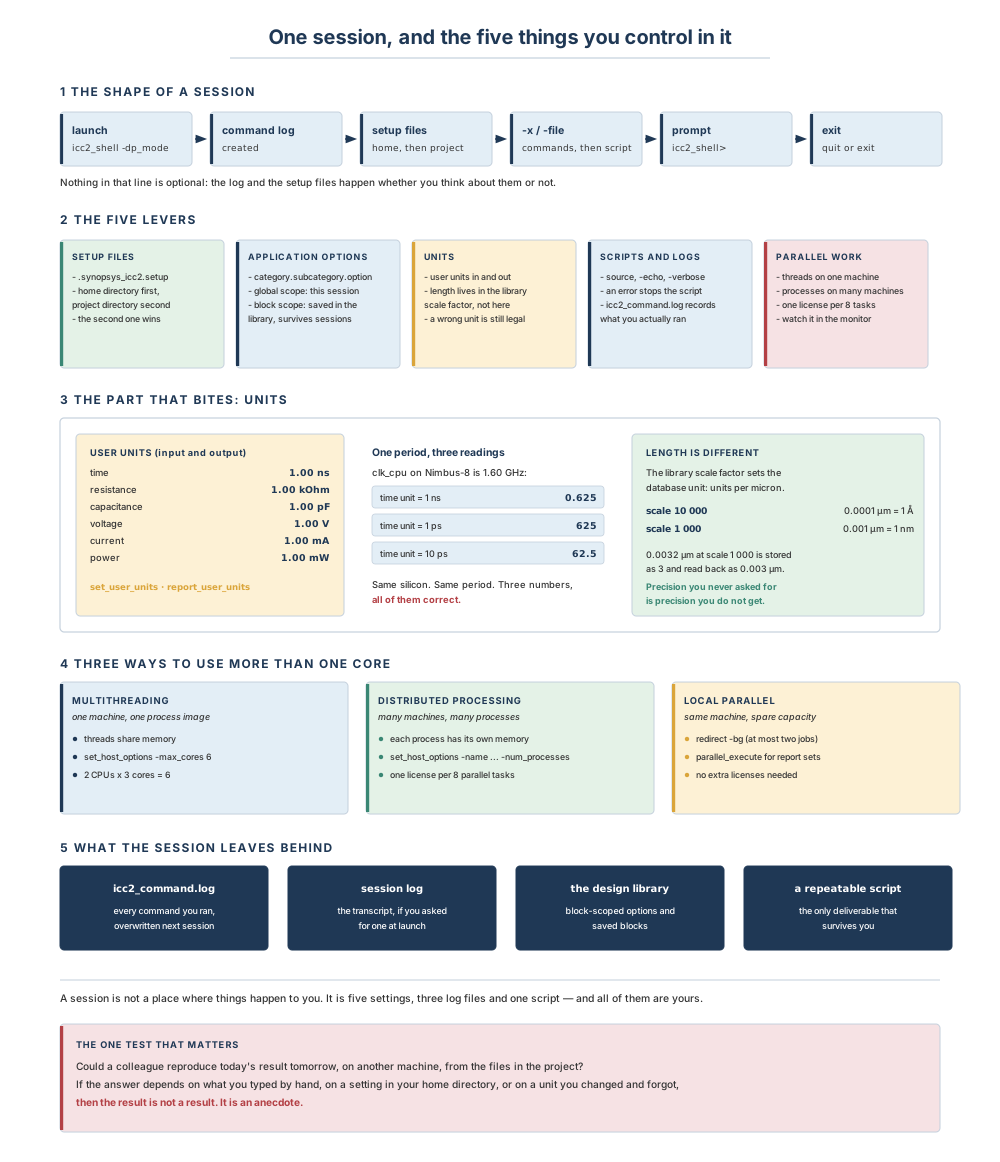
2.1 The beginner’s mental model
Start with a bench
A machinist who shares a workshop does four things before touching a workpiece. She checks that the tools are where they always are, because a habit that depends on hunting for a tool is not a habit. She checks which measuring set is on the bench, because a number without a unit is not a measurement. She writes what she does in the logbook, because next month somebody will ask why the part is 0.2 mm undersized. And if the job is big, she decides how many pairs of hands can usefully work on it, knowing that two people on a job that cannot be divided just get in each other's way.
A design planning session is that bench. The tools are the commands, and where they live is decided by your setup files. The measuring set is the unit system, and it can be changed without anything looking different. The logbook is the command log, which the tool writes whether or not you ever read it. And the extra hands are cores and machines, which help exactly as much as the work can be divided and not one bit more.
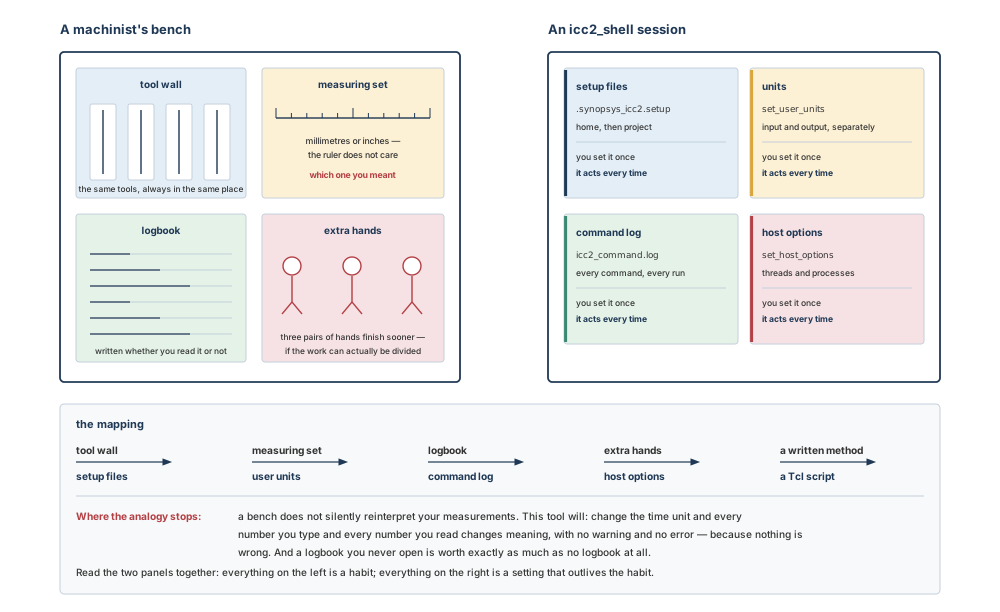
A ruler cannot lie to you: if you read millimetres off an inch scale, the part comes out visibly wrong. This tool is different. Change the unit in which numbers are interpreted and every number you type and every number you read changes meaning — with no warning, no error and nothing on screen to see, because nothing is wrong. The design is legal. The report is correct. Only the sentence in your head is false. That is why this chapter spends a full section on units, and why the first line of the worked example is a command that just prints them.
Now the engineering model
The tool operates in the X Window environment on UNIX or Linux and gives you two interfaces onto one session: a shell command-line interface called icc2_shell, and a graphical user interface. The shell is always available for the whole session; you can start or exit a session from either one, and you can open or close the graphical interface at any point without ending the session.
The command language is Tcl — the tool command language used across the electronic design automation industry — with extensions that add the tool's own commands. That single fact has a large consequence: everything you can do in Tcl, you can do here. Variables, conditionals, loops, procedures and script files are not add-ons; they are the language you are already typing in.
There is one more thing to know before anything else. Starting the shell with the design planning option puts it in a design planning mode that enables only the functionality, commands and operations related to design planning tasks, and restricts tool usage in other areas. That restriction is a feature: it is much harder to do the wrong thing at the wrong stage when the wrong thing is not available.
Do not confuse these
| This | Not this | How to tell them apart in one question |
|---|---|---|
| Application option | Application variable | Is it named category.option and set with set_app_options? Then it is an option — the normal way the tool's behaviour is controlled. Variables are few, are set with set_app_var, and search_path is the one you will actually use. |
| Global scope | Block scope | Where is it stored? A global-scoped option lives in the session and dies with it. A block-scoped option is saved in the design library with the block and comes back next time. |
help | man | Do you want one line or the whole page? help is quick help for a command; man displays the full reference page. They are not the same command with different verbosity. |
-file at launch | source at the prompt | Are you starting the session or already in it? Both run a script; only source can be given inside another script. |
| Command log | Session log | Does it record what you ran or what you saw? The command log records the commands, so it can be replayed as a script. A session log captures the transcript, including messages. |
| User units | Database units | Is it about how a number is written, or about what the database can store? User units are an input and output convention. The database unit is set by the library scale factor and limits precision itself. |
| Multithreading | Distributed processing | One process image with many threads on one machine, or many processes with their own memory on many machines? The first is -max_cores; the second is hosts and -num_processes. |
| Interrupting | Terminating | Do you want the command to stop, or the session to end? Ctrl+C interrupts the command and keeps you in the shell. Three of them before the command responds, and the shell exits. |
| Setting an option | Saving an option | Did anything reach disk? Setting a global option changes this session only; putting the same line in a setup file is what makes it happen again tomorrow. |
2.2 The concepts, built in dependency order
2.2.1 Two interfaces, one session
The shell command-line interface is a text-only environment in which you type commands at a prompt. It is what scripts, batch runs and push-button flows use, and it is the interface this book teaches. The graphical interface is a separate window onto the same session; you can open and close it at will, and Chapter 4 onwards will point at the places where looking at a floorplan is worth more than reading a report about it.
Two consequences matter now. First, anything you can do in one interface you are doing to the same session — there is no “GUI mode” with a separate state. Second, output goes to both: when you run a command, the tool echoes the output — processing messages, warnings and errors — in the shell and, if the graphical interface is open, in its console log view.
2.2.2 Starting a session, and leaving it
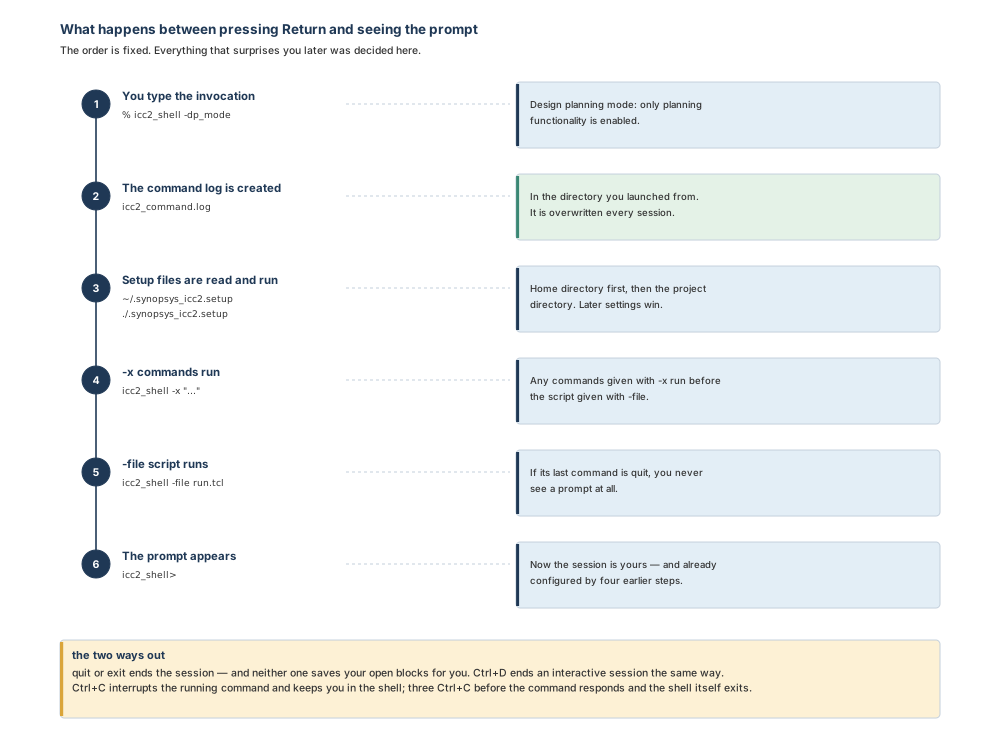
Before anything else, the directory containing the tool's executables must be on your PATH. Then, to start the shell in design planning mode:
% icc2_shell -dp_mode
Startup is a fixed sequence of four steps, and it is worth knowing because everything that surprises you later was decided in it. The tool creates a command log file; reads and executes the setup files; executes any script files or commands given with the launch options; and then displays the program header and the icc2_shell> prompt.
The launch options you will actually use are few:
| Option | What it does |
|---|---|
| -dp_mode | Starts the shell in design planning mode, where a limited functionality set is available for design planning only. |
| -file file_name | Runs the named script before the first prompt appears. If the last command in that script is quit, no prompt appears at all and the shell exits when the script finishes — which is how batch runs work. |
| -x command_string | Executes commands before the first prompt. Several commands can be given, separated by semicolons and enclosed in quotation marks. If both are given, the -x commands run before the -file script. |
| -gui | Opens the graphical interface immediately at startup. |
| -batch | Exits after processing -file and -x. It also sets the graphical interface's batch display option to offscreen, so a batch run that generates screenshots needs no display and shows no windows. |
| -version | Displays the version number and build date, then exits. |
| -no_init | Prevents any setup file from running before the first prompt. Its intended use is replaying a command log or another script to reproduce a previous session. |
| -no_local_init | Skips the setup files in the local directory path only. |
| -no_motd | Suppresses the message of the day. |
| -python | Starts the tool in Python instead of Tcl mode, in which case -x expects a Python statement and the script file is Python. Everything in this book is Tcl. |
Two more launch options are worth having: one that writes a log of the session, and one that prints the option list without starting the tool. Their exact spelling differs between the documents shipped with the tool — you will see both -output_log_file file_name and, for help, both -h and -help. Settle it for your installation in five seconds, once, and write the answer in your project notes:
% icc2_shell -help # or -h, depending on your release
Leaving is simpler than starting. exit or quit ends the session at any time, and in an interactive session Ctrl+D does the same. There is one thing to be very clear about:
When you exit the tool from the command line, it exits without saving the open blocks. Nothing is written for you, and nothing asks whether you are sure. If the last hour of work matters, it has to have been saved by a command you ran.
2.2.3 Typing commands, and stopping them
You interact with the tool by entering commands, which are Tcl-based with extensions for the tool's own functionality. The command language provides what a UNIX shell provides — variables, conditional execution, control flow — because it is a real programming language.
Four practical details save a surprising amount of time:
- Tab completion. Type enough characters of a command, option or file name to be unique and press Tab; the tool completes the rest. If what you typed matches more than one name, the tool lists the candidates and you choose with the arrow keys and Enter.
- Reusing output. To reuse a command from output, select the text, move the pointer to the command line and click the middle mouse button.
- Page mode. By default the tool does not page its output, so a long report scrolls past. To page it, set the
sh_enable_page_modevariable totrue. - Interrupting. Ctrl+C interrupts or terminates the command currently running and leaves you in the shell. How long that takes depends on the design size and the command. Some commands and processes cannot be interrupted at all; ending those means terminating the shell at the system level, and nothing is saved when you do.
Two consequences of Ctrl+C are worth memorising because they surprise people at the worst moment. If a script is running and you interrupt one of its commands, script processing is interrupted and no further commands in that script are processed. And if you press Ctrl+C three times before the command responds to the interrupt, the shell itself is interrupted and exits with the message Information: Process terminated by interrupt.
2.2.4 Asking the tool instead of guessing
This is the single most valuable habit in the chapter, so it comes before the material it makes unnecessary. Any question of the form “what does this do?” or “what options does it take?” has an answer inside your installation, and that answer is authoritative in a way that no book — including this one — can be.
# One line about a command.
icc2_shell> help report_timing

# The options this release supports, from the command itself.
icc2_shell> report_timing -help

# The full reference page.
icc2_shell> man report_timing

# Which commands even exist, matching a pattern.
icc2_shell> help "report_*"

# The value of a variable, or of every variable.
icc2_shell> printvar search_path
icc2_shell> printvar *
The man command does three things beyond command pages that beginners rarely discover. It displays the page for an application variable. It displays the page for an error message — man CMD-025 is a legitimate command and often the fastest route out of a confusing failure. And it summarises application options three ways: by category, by subcategory, and by the command they affect.
# Every application option in the plan category.
icc2_shell> man plan_options

# The same, narrowed to one subcategory.
icc2_shell> man plan.place_options

# Every application option that affects one command.
icc2_shell> man report_timing
One note on where the answer appears: entering man on the shell command line displays the page in the shell, and in the console log view if the graphical interface is open. Entering it on the console command line in the graphical interface displays it in that interface's own man page viewer.
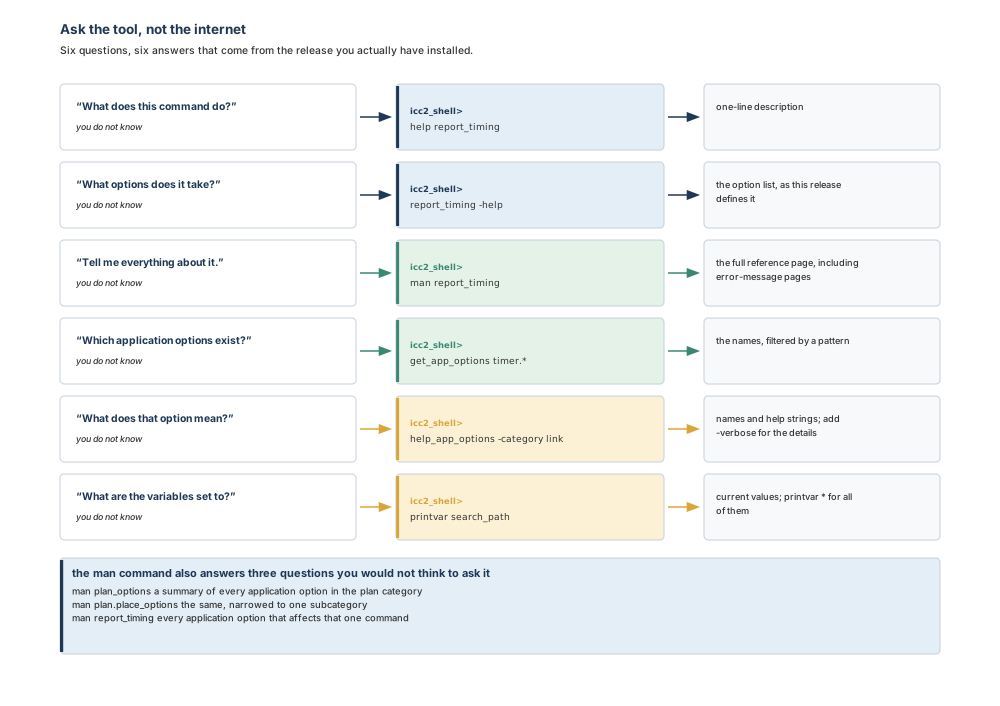
Why prefer the installed help over a book or a colleague? Because option names, defaults and even the set of available application options change between releases, and a script that hard-codes yesterday's spelling fails after an upgrade in a way that looks like a design problem. The help built into the release you launched is the one answer that cannot be out of date relative to the tool you are running.
2.2.5 Application options — and the handful of variables
The tool controls its behaviour with application options rather than with variables. It does support user-defined Tcl variables and a minimal number of application variables — search_path being the one you will use constantly — and printvar lists what is available.
Application options are named in a fixed pattern:
category[.subcategory].option_name
The category is the name of the engine the option affects; some categories have subcategories that narrow the area further. So the name itself tells you which part of the tool you are about to change, which is a small kindness worth appreciating.
Scope is the part that causes arguments. Every application option has either global scope or block scope:
- Global-scoped options apply to all blocks, but only within the current session. They are not saved in the design library, so you must specify them in every session — which is exactly what a setup file is for.
- Block-scoped options apply only to the block they were set on. They are saved in the design library and persist across tool sessions.
There is one exception that catches everyone once. Setting a block-scoped option with -as_user_default makes it a user default for the session: it then behaves like a global option and is not persistent across sessions. That option is also mutually exclusive with -block, and it is simply ignored if you give it for a global-scoped option.
# Which options exist? Filter by pattern.
icc2_shell> get_app_options "plan.*"

# What do they mean? Names and help strings, by category.
icc2_shell> help_app_options -category link

# Set one, and read the confirmation the command returns.
icc2_shell> set_app_options -name time.enable_preset_clear_arcs -value true
time.enable_preset_clear_arcs true

# Set several at once — the list must have an even number of tokens.
icc2_shell> set_app_options \
   -list {shell.tmp_dir_path "/tmp" time.enable_preset_clear_arcs true}

# What is it right now, and what have I changed from the defaults?
icc2_shell> get_app_option_value -name time.enable_preset_clear_arcs
icc2_shell> report_app_options -non_default

# Put it back.
icc2_shell> reset_app_options time.enable_preset_clear_arcs
Two details from that block are worth calling out. If any name–value pair in a -list is invalid, the command fails with no effect — so a typo changes nothing rather than changing half of what you meant, which is the behaviour you want. And report_app_options is also how you find out whether a given option is global or block-scoped, which is the question behind most “but I set that yesterday” conversations.
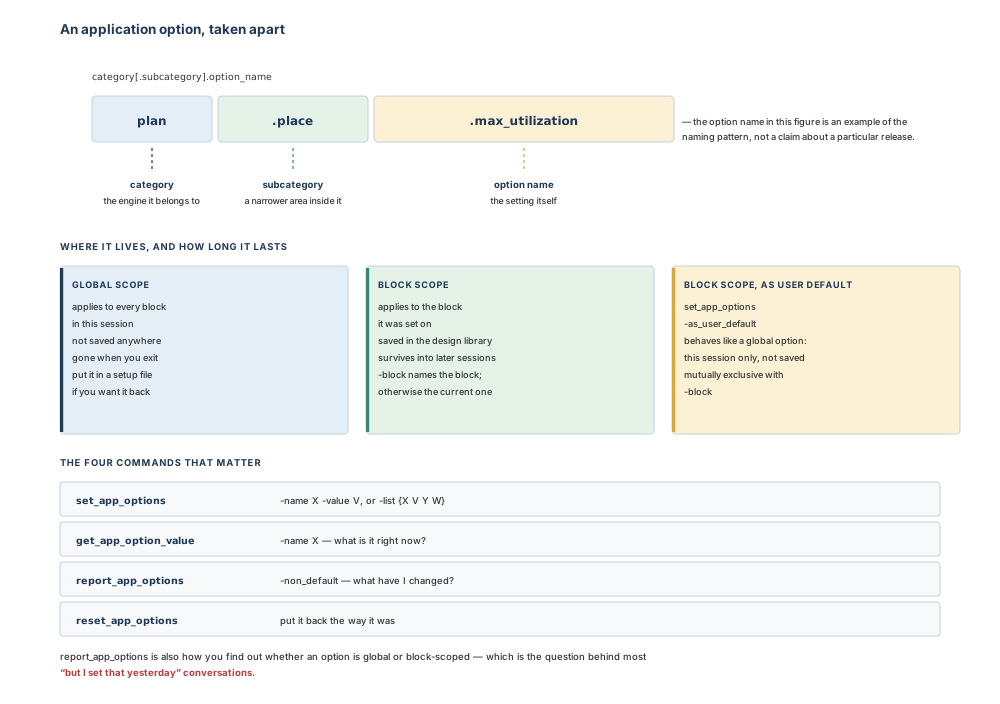
…you set a global option and expect it back tomorrow? Nothing changes tomorrow — that is the point. Global settings live in the session. If you want a setting to be part of the project rather than part of your morning, it belongs in a setup file, in version control, where a colleague inherits it without being told.
2.2.6 Units, part one: the numbers you type and read
The tool keeps two sets of user units: one for input, meaning what a number you type or a file supplies is taken to mean, and one for output, meaning what a number in a report or an attribute value is expressed in. They are separate, and they can differ.
# What am I working in? Run this before you trust any number.
icc2_shell> report_user_units

Input Units (set to default)
----------------------------------------------
time                         : 1.00ns
resistance                   : 1.00kOhm
capacitance                  : 1.00pF
voltage                      : 1.00V
current                      : 1.00mA
power                        : 1.00mW

Output Units (set to default)
----------------------------------------------
... the same six quantities ...
Those six values are the defaults. To change one, name the type and the value:
# Both input and output, together.
icc2_shell> set_user_units -type time -value 10ps

# Input only — useful when a constraint file is written in picoseconds
# and you would rather read reports in nanoseconds.
icc2_shell> set_user_units -input -type time -value 1ps

# And to query one quantity programmatically:
icc2_shell> get_user_units -output -type time
Give neither -input nor -output and both sets change together. The types you can set are capacitance, current, length, power, resistance, time and voltage.
set_units has no effect. It exists so that reading a constraint file that contains a set_units line does not fail — it is parsed and ignored. The consequence is exact and expensive: if the constraint file's units are not the same as your current input units, you must run set_user_units before reading it. The set_units line inside the file will not do it for you, and nothing will warn you.
Here is why this section exists. Nimbus-8's fastest clock is 1.60 GHz, so its period is 625 ps. That single physical fact is written three different ways depending on the time unit in effect:
| Time unit in effect | The period reads | What goes wrong if you assume the other one |
|---|---|---|
| 1 ns (the default) | 0.625 | Nothing — provided everyone knows. |
| 1 ps | 625 | A constraint typed as 0.625 here asks for a 0.625 ps period: a 1.6 THz clock, and a design that can never close. |
| 10 ps | 62.5 | A budget of 190 typed here means 1.9 ns, not 190 ps — an order of magnitude of slack that does not exist. |
Notice that no line of that table involves a mistake by the tool. Every reading is correct. The error is always the same error: a number moved between two people, or between two files, without its unit.
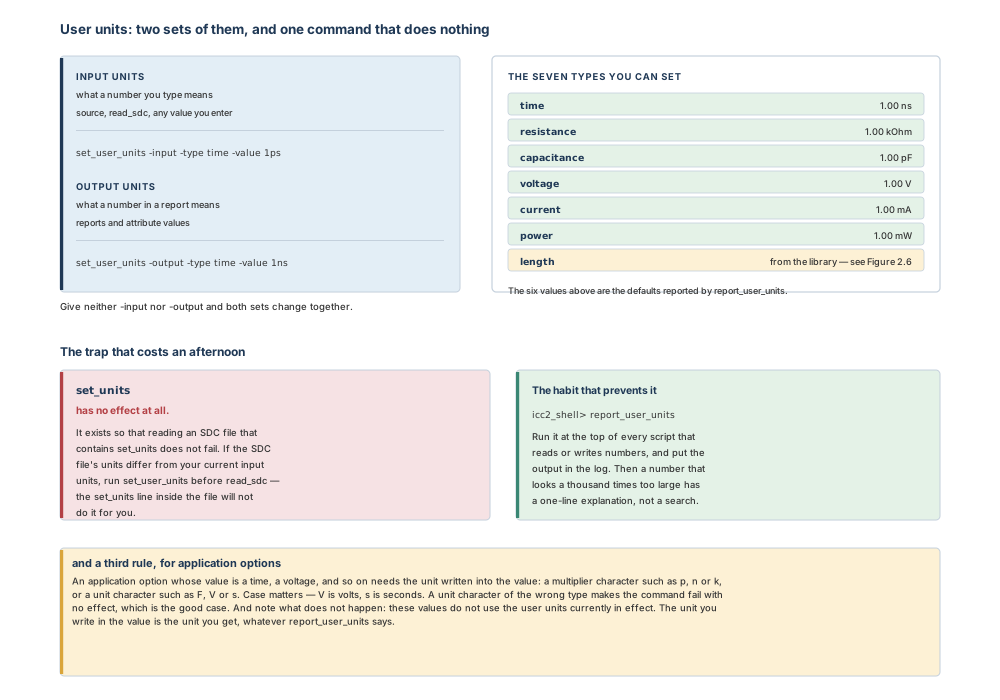
set_units does nothing, and application-option values carry their own unit regardless of the user units in effect.That last rule deserves its own paragraph, because it is a second, independent unit system living inside the first. Many application options take a value that must be expressed in units of time, voltage and so on. For those, the unit goes into the value: a multiplier character such as p, n or k, or a unit specifier such as F, V or s. The case of the unit character matters — uppercase V for volts, lowercase s for seconds — and if the character does not specify the right type of unit, the command fails with no effect. Most importantly: these values do not use the user units currently in effect. What you write in the value is what you get.
report_user_units before you believe a number, write units into application-option values, and never trust set_units to do anything at all.2.2.7 Units, part two: length, and what the database can actually store
Length is missing from the six defaults for a reason: it is not primarily a reporting convention but a property of the library. Design data is stored in internal units, and a library's scale factor is the number of database units per micron. It sets the smallest distance that can be represented at all, and the tool converts what you type into those internal units.
The conversion is a multiply and a round. When the tool saves a floating-point number it multiplies by the scale factor and rounds to an integer; when it retrieves the number it divides by the scale factor. Follow one value through:
# Scale factor 1 000 — one database unit per nanometre.
you ask for   0.0032 um
stored as     0.0032 x 1000 = 3.2   ->  rounds to 3
read back as  3 / 1000              =   0.003 um
you lost      0.0002 um = 0.2 nm, silently

# Scale factor 10 000 — one database unit per angstrom.
you ask for   0.0032 um
stored as     0.0032 x 10000        =   32
read back as  32 / 10000            =   0.0032 um   # exact
If the scale factor is not large enough, the precision of the coordinates you specify is affected. A shape whose boundary is given as {{0.500 0.500} {0.5053 0.5053}} is stored as {500 500} {505 505} at a scale factor of 1 000, and as {5000 5000} {5053 5053} at 10 000. The design is legal either way. It is simply not the design you drew.
Four rules follow, and they are the whole of what a planning engineer needs:
- The default for a new library is 10 000, which allows distances down to 1 Å to be represented.
- Scale factors must be compatible. A design library's scale factor must be compatible with the session's, and it must be a multiple of the length precision of the technology file associated with the library.
- Mixed reference libraries take their lowest common multiple. Create a library with reference libraries that all share a scale factor and the new library gets it; give it reference libraries with different scale factors — 2 000 and 4 000, say — and the new library gets 4 000.
- The recommended setting is the technology length precision. To use it, set
lib.setting.use_tech_scale_factortotruebefore creating the library.
# Ask, rather than assume.
icc2_shell> get_attribute [get_lib my_libA] scale_factor

# And prefer the technology's own precision when creating a library.
icc2_shell> set_app_options -name lib.setting.use_tech_scale_factor -value true
icc2_shell> create_lib nimbus8.dlib -technology nimbus8.tf -ref_libs {stdcell.ndm sram.ndm}
For the teaching design, the arithmetic is reassuringly boring — which is what a sane setup looks like. At a scale factor of 10 000, every dimension in Chapter 1 is a whole number of database units: the 3.44 mm die edge is 34 400 000 units, the 3.20 mm core edge is 32 000 000, the 0.576 µm row height is 5 760, and the 0.048 µm track pitch is 480. Nothing rounds, so nothing drifts.
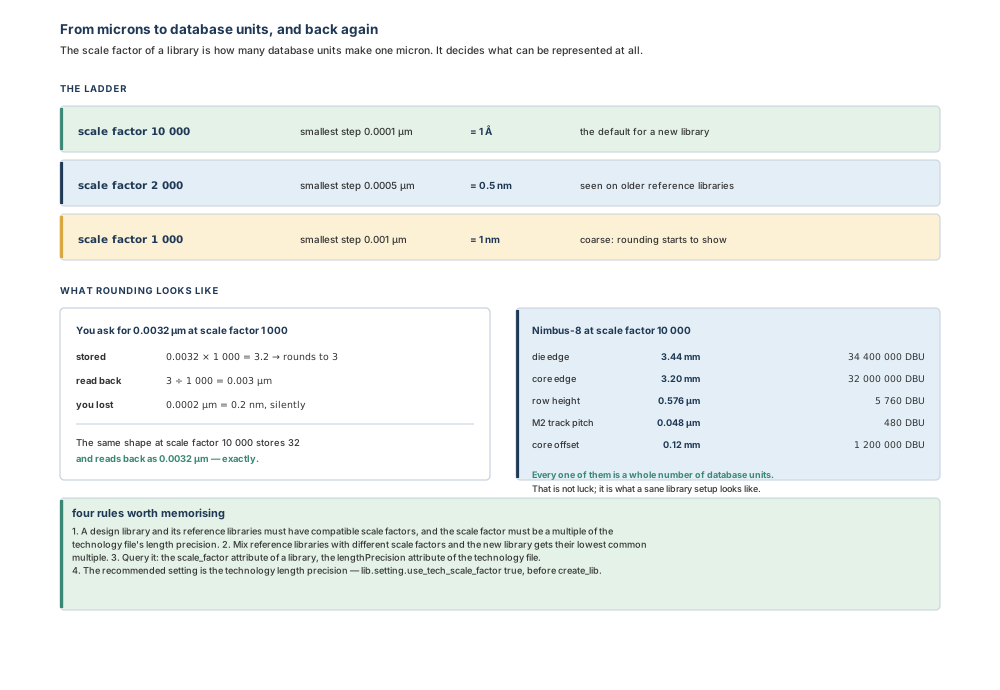
Why not always use an enormous scale factor? Because the scale factor is not free and not private: it must be compatible with every reference library in the session and a multiple of the technology's length precision. A number chosen for comfort rather than for the technology becomes an incompatibility you discover when you add a reference library six weeks later. Take the technology's precision, which is the recommendation, and stop thinking about it.
2.2.8 Scripts, and what happens when one fails
A script is a text file containing a sequence of commands, and any command you can type can go in one. A # at the start of a line is a comment. There are three ways to run one: with the launch option when you start the tool, with source from the prompt, or from the graphical interface's script menu.
# Quietly, the default.
icc2_shell> source scripts/10_plan.tcl

# Echoing each command as it runs — the option to use while developing.
icc2_shell> source -echo scripts/10_plan.tcl

# Echoing the result of each command as well.
icc2_shell> source -echo -verbose scripts/10_plan.tcl
Now the important part. If an error occurs while a command in a script is running, the tool raises the TCL_ERROR condition, which immediately stops script execution. Nothing after the failing line runs. That is the correct default, and you should think twice before defeating it — but there are two legitimate ways to do so:
- Catch the specific command with the Tcl
catchcommand, so that one command is allowed to fail and you decide what happens next. - Tolerate errors for a whole script, either by setting the
sh_continue_on_errorvariable totruein the script file, or by running that one script withsource -continue_on_error.
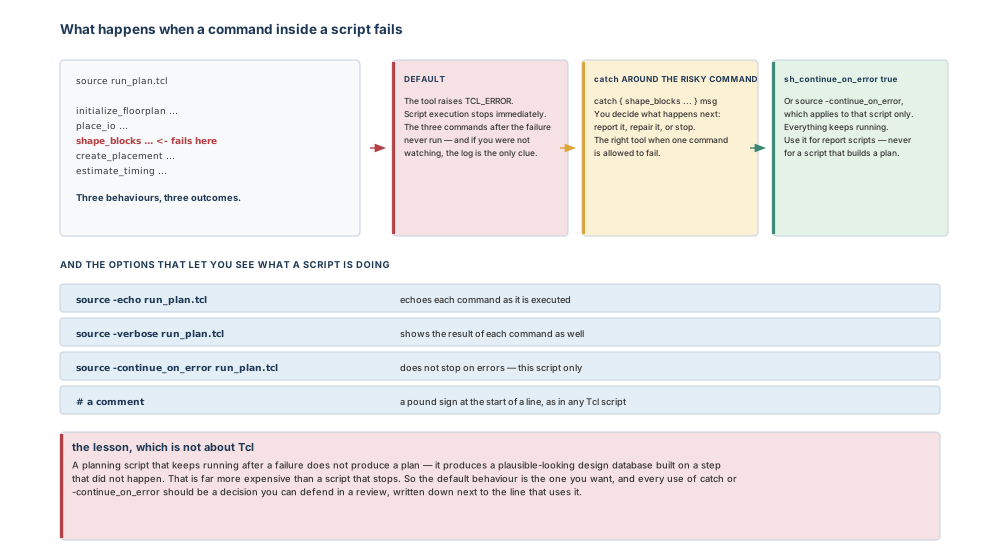
catch around the one command that is allowed to fail — is almost always the right one, because it is the only one where the decision is written down.A report script that keeps running after a failure gives you an incomplete report, which is annoying. A planning script that keeps running after a failure gives you a design database in which one step silently did not happen — a floorplan without tracks, blocks that were never shaped, budgets built from an abstract that does not exist. That failure is discovered days later and costs correspondingly more. Set sh_continue_on_error in a report script if you like. Do not set it in a script that changes the design.
Generating a script from a spreadsheet
One script-generation feature belongs to this chapter because it is a scripting facility rather than a planning step: a power–ground script can be generated from data held in a spreadsheet, provided the spreadsheet is a CSV file in the expected format. The commands written into the generated script are limited to the pattern and strategy commands used in power planning — composite patterns, special patterns, wire patterns, and the strategy and via-rule commands — and no other power–ground commands are supported.
# Generate a Tcl script from spreadsheet data.
icc2_shell> generate_pg_script -input special_pattern_spreadsheet.csv \
   -output test.tcl
The command also documents a separate option for spreadsheet input and a -template option that produces a template for you to fill in. Which option name your release expects for a CSV file is worth confirming once with generate_pg_script -help before you build a flow around it. Whichever it is, the discipline is the same: keep the CSV in version control, generate the script, and never hand-edit the generated file — regenerate it.
2.2.9 Setup files: the session before the session
When the tool starts, it automatically executes the commands in the .synopsys_icc2.setup file. It looks in two places, in this order: your home directory, then the project directory — meaning the current working directory from which you started the tool.
The order is the whole design of the feature. Personal preferences go in the home-directory file, where they follow you between projects. Project- or block-specific settings that affect how a block is processed go in the project-directory file, where they follow the project — and, being read second, they take precedence over your personal ones.
# ./.synopsys_icc2.setup — the project's file, in version control.

# Where libraries are found, in search order.
set_app_var search_path {. ./libs ./ref_libs}

# Project-wide behaviour: global-scoped options are session-only,
# which is exactly why they belong here.
set_app_options -name lib.setting.use_tech_scale_factor -value true

# A farm configuration everyone on the project should share.
set_host_options -name farm -submit_command "/lsf/bin/bsub -q linux64" \
   -num_processes 12
…a setting lives in your home directory instead of the project? Your runs work and your colleague's do not, and the difference is invisible to both of you. This is the single most common cause of “it works on my machine” in physical design. The test is simple: if the setting is a fact about the project, it belongs in the project's setup file even if you are the only person who will ever run it — because in six months you will be, effectively, someone else.
2.2.10 The command log, and why it is not a log file
The command log records the commands the tool processed, including the commands from setup files and application option settings. By default it is written to icc2_command.log in the directory you invoked the shell from. You can change the name by setting the sh_command_log_file variable in your setup file — and that change has to be made before the tool starts, because the file is created during startup. If no setup file sets it, the default name is used.
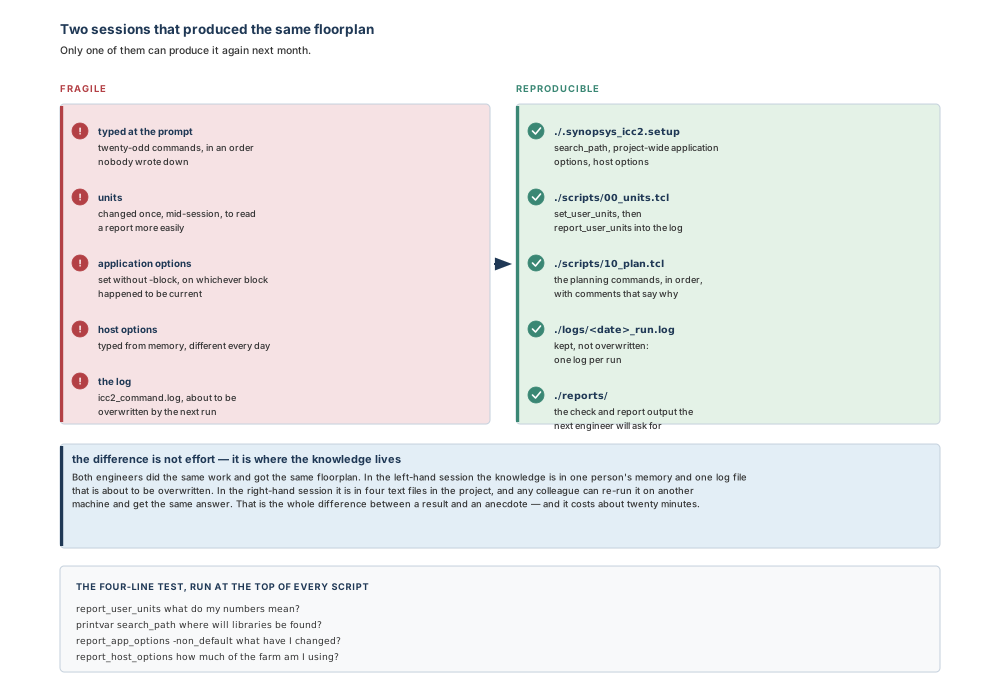
Every session overwrites the command log file. To keep one, move it or rename it — which means that the record of this morning's run is gone the moment somebody starts another session in the same directory. Copy it as the last step of every run, into a file whose name has the date in it.
What makes the command log valuable is that it is not prose: it is a sequence of commands, so it can be read as a script. Three uses follow directly. It can be turned into a script that reproduces a particular implementation strategy. It is a record of what was actually done to the design, as opposed to what the run script said. And it is the file to attach when you ask somebody for help, because it answers the first question they will ask.
2.2.11 Using more than one core
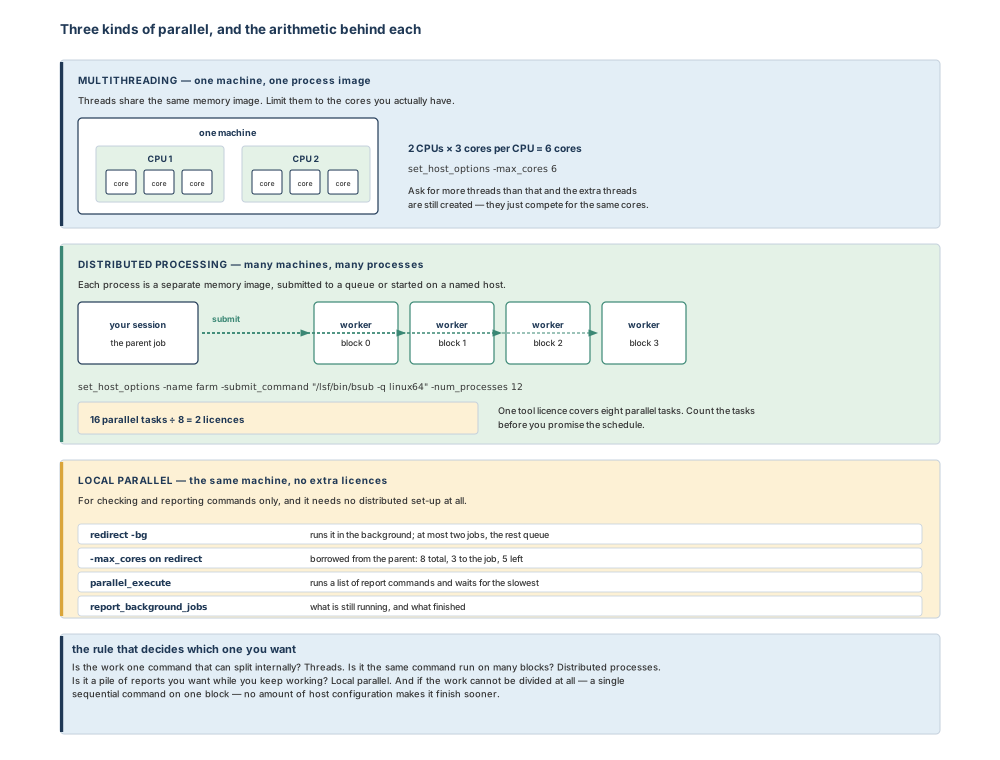
Several functions support multicore processing, through multithreading, distributed processing or parallel command execution. In most cases you configure it with one command, set_host_options, and the three modes are genuinely different things.
Multithreading — one machine
Multithreading performs tasks in parallel using multiple cores on the same machine, within a single process memory image; each parallel task is a thread. The total number of cores on a machine is the number of CPUs multiplied by the number of cores per CPU, and for best performance you limit the threads to the cores you actually have. So on a machine with two CPUs of three cores each:
icc2_shell> set_host_options -max_cores 6
By default every command uses a single thread. The number given by -max_cores applies to all commands that support multithreading, and the value is a maximum: a command may use fewer, never more. But note the sharp edge — when you enable multithreading, multithreaded commands create and use the number of threads you specified even if that is more than the number of available cores. Overthreading reduces performance, because the extra threads compete for the same resources.
Distributed processing — many machines
Distributed processing performs tasks in parallel using multiple machines, each process with its own memory image; each parallel task is a process. You can specify the job submission command, a list of host machines, and the maximum number of processes. Without a submission command, remote jobs are launched with rsh.
# A queueing system, named so it can be selected and removed later.
icc2_shell> set_host_options -name farm \
   -submit_command "/lsf/bin/bsub -q linux64" -num_processes 12

# Or a plain list of machines, with a per-host limit.
icc2_shell> set_host_options -name rshOpt -submit_command "rsh" \
   -num_processes 8 {sleepy:5 doc:4}

# What is configured, and how to take it away again.
icc2_shell> report_host_options
icc2_shell> remove_host_options -name farm
Three numbers govern this and they are easy to mix up. -num_processes is the level of parallelism for job submission: for a queue it is the maximum total number of jobs that can be submitted; for a collection of named hosts it is the maximum number of jobs per host. Its default is 1. -max_cores, when it is part of a host specification, controls how many cores each distributed job may use. And the licence rule sits on top of both: you need one tool licence for every eight parallel tasks, so sixteen parallel tasks need two licences.
Running the same task on many blocks
To run the same task on several blocks — the characteristic planning pattern — run_block_script takes a Tcl script and applies it to the blocks you name, using distributed processing:
icc2_shell> run_block_script -script scripts/per_block.tcl \
   -blocks {u_cpu_cluster u_npu_core u_isp u_soc_periph} \
   -run_order bottom_up -host_options farm
The run order matters in a multi-level hierarchy, because jobs for two blocks with an ancestor–descendant relation cannot run in parallel. With bottom_up — the default — a block does not start until its children have finished. With top_down, a block does not start until the blocks it is instantiated in have finished.
Local parallel work — no extra licences
For checking and reporting commands there is a third way that needs neither distributed configuration nor extra licences: run them on your own machine, either in the background or in parallel.
# In the background: the prompt comes back immediately.
icc2_shell> set_host_options -max_cores 8
icc2_shell> redirect -bg -max_cores 3 -file logs/bg_report.log \
   {source scripts/reports.tcl}
Information: redirect -bg with max_cores 3 started. The maximum number of
 cores available in parent is reduced to 5. (BGE-004)

# What is running, and what has finished.
icc2_shell> report_background_jobs

# Which commands may be run this way at all.
icc2_shell> list_commands -bg

# Or in the foreground, waiting for the slowest one.
icc2_shell> update_timing
icc2_shell> parallel_execute {
   report_cmd1 log_file1
   report_cmd2 log_file2
}
Read the message in that block carefully, because it is the arithmetic of the whole feature: the cores given to a background job are taken from the parent. Eight cores, three to the background job, five left for the work you are still doing. At most two jobs run in the background; ask for more and they queue. And one piece of practical advice that saves both runtime and memory: run update_timing before launching a set of reporting commands in parallel, or each command that needs updated timing will run it independently.
2.2.12 Watching distributed work while it runs
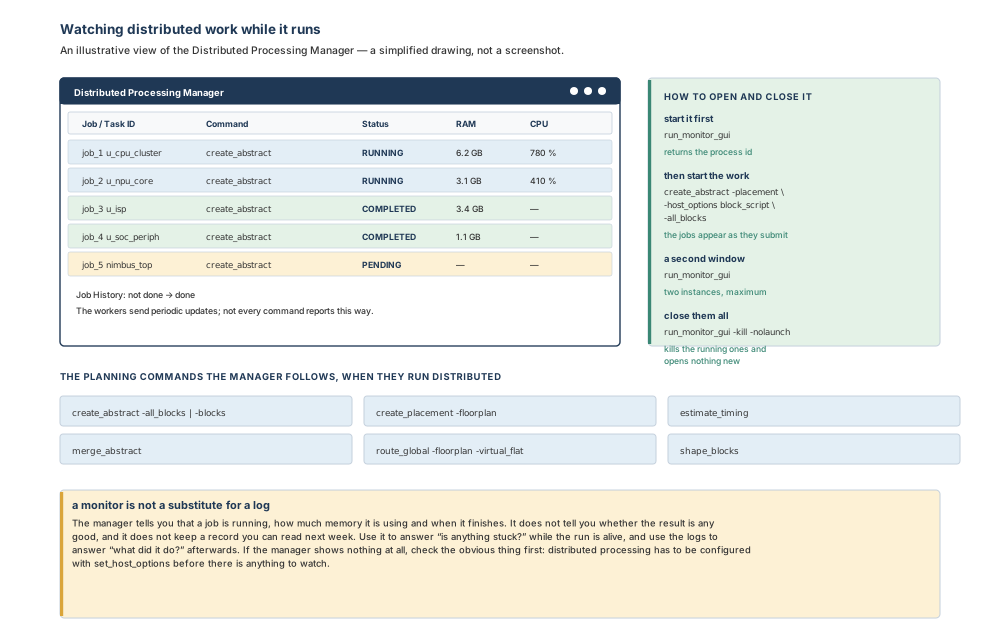
A Distributed Processing Manager exists to let you monitor distributed tasks as they run. It communicates with distributed commands to provide up-to-date status, and when a task completes the display updates to show it finished. The workers periodically send updates showing the currently running command and their memory and processor use — though not every command reports this way.
# Start the monitor first. It returns the process id of the task it created.
icc2_shell> run_monitor_gui
10948

# Then start the distributed work; jobs appear as they are submitted.
icc2_shell> create_abstract -placement \
   -host_options block_script -all_blocks
Submitting job for block u_cpu_cluster ...
Submitting job for block u_npu_core ...
...

# Two windows is the maximum. To close them all and open nothing new:
icc2_shell> run_monitor_gui -kill -nolaunch
When every task is finished the manager shows COMPLETED for all job and task identifiers and moves the job history from not done to done. You may have at most two manager windows open at once; running the command a second time opens the second one, and -kill terminates existing instances before launching. If any manager tasks are still running when your session ends, they are terminated with it.
Six planning commands are followed by the manager when they run in distributed mode: abstract creation for all or named blocks, floorplan placement creation, timing estimation, abstract merging, virtual-flat floorplan global routing, and block shaping. Those are exactly the long-running steps of the flow in Chapter 1 — which is the point.
2.3 Inputs, outputs and readiness
What has to be true before a session is worth starting
| Input | Why the session needs it | Consequence if it is wrong or missing |
|---|---|---|
The tool's bin directory on your PATH | So that icc2_shell resolves to the release you intend to run. | Either nothing starts, or — worse — a different release starts and behaves almost the same. |
| A project setup file | The project's search path, shared application options and host configuration, applied identically for everyone. | Every engineer's session is subtly different, and nobody can reproduce anybody. |
search_path set for this project | How libraries given by simple name are found, in the order listed. | A library resolves to the wrong copy, or not at all. |
| A design library and the block you mean to work on | Everything block-scoped — including application options — attaches to a block. | Block-scoped settings land on whichever block happens to be current. |
| Known user units | So that the numbers you type mean what you think and the numbers you read can be quoted. | Silently wrong constraints and reports that are correct but misread. |
| A known library scale factor | It sets the finest length the database can represent. | Coordinates round; the design is legal and is not the one you drew. |
| Host configuration, if the work is distributed | Cores, processes, submission command and, if you use a queue, the queue itself. | A long run on one core, or a farm run that queues behind itself and exhausts licences. |
| Somewhere to keep logs | The command log is overwritten by the next session. | No record of what produced today's result. |
Preflight checklist
- You know which release you are running (
icc2_shell -version, recorded in the log). - The project setup file is in version control, and you know what it sets.
printvar search_pathshows the paths you expect, in the order you expect.report_user_unitsoutput is in the log for this run.- The library scale factor has been checked once for this project and written down.
report_app_options -non_defaultshows only changes you intended.report_host_optionsmatches the machines and licences you are entitled to use.- The run is a script, not a sequence of things you typed.
- The command log will be copied somewhere dated when the run finishes.
What the session leaves behind
Four artefacts, and it is worth being precise about which of them survive. The command log is a replayable record of the commands the session processed — and is overwritten by the next session in that directory. A session log, if you asked for one at launch, holds the transcript including messages. The design library holds anything you saved, including block-scoped application options. And the scripts and setup files hold the only part of the session that is genuinely durable: the intent.
When a session's results are not trustworthy
| Condition | Why it matters |
|---|---|
| Settings live in your home setup file | Your session differs from every colleague's, invisibly to both of you. |
| Units were changed mid-session | Numbers before and after the change mean different things, and nothing in the report says so. |
Application options were set without -block | They landed on the current block, which may not be the one you were thinking about. |
| The run was typed, not scripted | The only record is a command log that the next session overwrites. |
| A script ran with errors tolerated | One step may not have happened; the database looks finished either way. |
| Host options were typed from memory | Runtime is not comparable between runs, and licence use is not predictable. |
| A user default was mistaken for a saved setting | -as_user_default lasts for the session only; tomorrow's run is different. |
2.4 The guided workflow
2.4.1 A session, from launch to exit
- Check the release and the environment. Confirm the
bindirectory is on yourPATH, and record the version. - Start in design planning mode.
icc2_shell -dp_mode, from the project directory so that the project setup file is the one that runs. - Verify what the setup files did.
printvar search_path,report_app_options -non_default,report_host_options. Three commands, five seconds, and no surprises later. - Verify the units.
report_user_units, and set them explicitly if this project's convention differs from the defaults. - Open the library and the block you intend to work on, so that block-scoped settings land where you mean them to.
- Run the work as a script, with
source. Use-echowhile you are developing it and drop it once it is stable. - Configure hosts before a long step, not after:
set_host_options, then check withreport_host_options. - Start the monitor before the distributed step, not while wondering whether anything is happening.
- Save deliberately. Nothing is saved on exit.
- Copy the command log to a dated file, then leave with
exit.
2.4.2 Command reference for this chapter
Eight commands do the work of this chapter. Each is presented the same way as in Chapter 1: purpose, syntax in plain English, prerequisites, a small realistic example, what to expect, how to verify, what goes wrong, and how to find the rest.
icc2_shell — start a session that configures itself
Purpose. Runs the tool. The shell interprets and executes commands and is based on Tcl; it executes commands until terminated by quit or exit.
Syntax in plain English. -dp_mode starts in design planning mode, where a limited functionality set is available for planning only. -file runs a script before the first prompt; -x runs commands before the first prompt, and before the -file script if both are given. -gui opens the graphical interface at startup; -batch exits after the -file and -x work is done and sets the graphical batch display to offscreen, so no display is needed. -version prints the version and build date and exits. -no_init prevents any setup file from running; -no_local_init skips the local ones only. -no_motd suppresses the message of the day. -python switches the language to Python, in which case -x expects a Python statement.
Prerequisites. The tool's bin directory on your PATH; a project directory to start from, if you want the project setup file to apply.
# Interactive planning session, from the project directory.
% icc2_shell -dp_mode

# A batch run: two commands, then a script, then exit.
% icc2_shell -dp_mode -batch \
   -x "printvar search_path; report_user_units" \
   -file scripts/10_plan.tcl

# Replay a command log without letting setup files interfere.
% icc2_shell -dp_mode -no_init -file icc2_command_20260907.log
Expected result. The four startup steps run in order — command log created, setup files executed, -x then -file processed — and then either a prompt appears or, in a batch run, the shell exits.
Verification step. First three commands of every interactive session: printvar search_path, report_app_options -non_default, report_user_units. If any of the three surprises you, a setup file did something you did not know about, and you have found it before it cost anything.
Common mistakes. Starting from the wrong directory, so the project setup file never runs. Assuming -file runs before -x — it does not. Forgetting that a script whose last command is quit gives you no prompt, then wondering why the session ended. Using -no_init routinely rather than only for replaying a log, and then being puzzled that the project's settings are absent.
Finding the rest. The invocation help — icc2_shell -help, or -h on some releases — lists the options without starting the tool.
source — run a script, and see what it is doing
Purpose. Reads a file and evaluates it as a Tcl script. The result of source is the result of the last command executed from the file.
Syntax in plain English. -echo echoes each command as it is executed. -verbose displays the result of each command; error messages are displayed either way. -continue_on_error does not stop the script on errors — the same effect as setting the sh_continue_on_error variable to true, but limited to this one script. The file argument is the script to read.
Prerequisites. A readable script file, and a session in the state the script expects — a script that assumes a block is open will fail on its first command if it is not.
# Quiet, the default, for a script you trust.
icc2_shell> source scripts/10_plan.tcl

# While developing: show each command, and each result.
icc2_shell> source -echo -verbose scripts/10_plan.tcl

# A report script, where continuing past a failure is acceptable.
icc2_shell> source -continue_on_error scripts/90_reports.tcl
Expected result. The commands run in order. On an error, the tool raises the TCL_ERROR condition and script execution stops immediately — unless you asked otherwise.
Verification step. Do not verify a script by watching it. Verify it by what it leaves behind: the reports it wrote, the checks it ran, and the last line of its log. A script that “looked fine” is not evidence.
Common mistakes. Using -continue_on_error on a script that changes the design. Interrupting one command in a script with Ctrl+C and expecting the rest to run — script processing stops. Leaving -echo on in production runs, which buries the messages that matter in the commands that do not.
Finding the rest. man source, and man sh_continue_on_error for the variable.
set_app_options — change how the tool behaves
Purpose. Sets application options to the specified value on the specified block. Application options are the normal way tool behaviour is controlled.
Syntax in plain English. -name and -value set one option and go together; -list sets several as name–value pairs and is mutually exclusive with them. -block names the block to set a block-scoped option on; without it, the current block is used. -category lets you give one or two levels of category once instead of repeating it in every name. -as_user_default sets the value as the session's user default — it applies to the current session only, is not saved, is ignored for global-scoped options, and cannot be combined with -block.
Prerequisites. For a block-scoped option, the block you intend to change must be open and either current or named with -block.
# One option; the command echoes back the name and value it set.
icc2_shell> set_app_options -name lib.setting.use_tech_scale_factor -value true
lib.setting.use_tech_scale_factor true

# Several at once. An invalid pair makes the whole command fail with no effect.
icc2_shell> set_app_options -list {shell.tmp_dir_path "/tmp" \
   time.enable_preset_clear_arcs true}

# On a named block rather than the current one.
icc2_shell> set_app_options -block [get_blocks u_isp] \
   -name time.enable_preset_clear_arcs -value true
Expected result. The command returns the name–value pair it set. Global settings apply everywhere in this session; block-level settings are saved with the block in the design library and persist across sessions — except when set with -as_user_default, in which case they behave like global options and do not persist.
Verification step. get_app_option_value -name option for one option; report_app_options -non_default for everything you have changed. Use the second one at the end of a setup file, so the log records the answer.
Common mistakes. Setting a block-scoped option with no block open or the wrong block current. Expecting a global option to be there tomorrow. Combining -as_user_default with -block. Writing a value that needs a unit without its unit character — and note that these values do not use the user units in effect, so the unit must be in the value.
Finding the rest. get_app_options pattern for names, help_app_options -category category for meanings, man category_options for a category summary, reset_app_options to undo.
printvar and set_app_var — the few variables that matter
Purpose. printvar prints the values of one or more variables; set_app_var sets an application variable. The tool modifies default behaviour through application options rather than variables, and supports only a minimal number of application variables — but the ones it does support are load-bearing.
Syntax in plain English. printvar takes an optional pattern, with * and ? as wildcards, and prints everything if no pattern is given; -user_defined and -application restrict the listing to one kind or the other and are mutually exclusive. set_app_var takes the variable name and its value.
Prerequisites. None beyond a session. Variables that affect startup — the command log file name among them — must be set in a setup file, because by the time you have a prompt it is too late.
# The variable you will use most: where libraries are found, in order.
icc2_shell> set_app_var search_path {. ./libs ./ref_libs}
. ./libs ./ref_libs

# Check it, and see what else exists.
icc2_shell> printvar search_path
icc2_shell> printvar -application

# Page long output instead of watching it scroll away.
icc2_shell> set_app_var sh_enable_page_mode true
Expected result. The variable's new value, echoed. printvar lists names and values.
Verification step. For search_path, the real verification is not the value but the resolution: open the library you expect and confirm you got the copy you expected rather than an older one with the same name.
Common mistakes. Setting sh_command_log_file after startup and expecting the log to move. Reordering search_path and forgetting that already-bound reference libraries stay bound until you rebind them. Using a variable where an application option exists — the option is the supported route.
Finding the rest. man variable_name works for variables, and get_app_var -details variable gives type, default and constraints.
set_user_units — decide what your numbers mean
Purpose. Sets the units used for user input and output. The tool maintains separate units for input and for output.
Syntax in plain English. -type names the quantity — capacitance, current, length, power, resistance, time or voltage. -value gives the unit, written as a number and a unit string: 1ps, 1.0ps, 10ps, 1kOhm. -input changes only what typed and read-in numbers mean; -output changes only what reported numbers mean; giving neither changes both.
Prerequisites. None — but doing it before reading constraints is the entire point, because a constraint file's own unit statement will not change your input units.
# The habit: print first, so the log records what the numbers meant.
icc2_shell> report_user_units

# This project quotes timing in picoseconds. Say so, explicitly.
icc2_shell> set_user_units -type time -value 1ps

# Or: read a picosecond constraint file, but report in nanoseconds.
icc2_shell> set_user_units -input  -type time -value 1ps
icc2_shell> set_user_units -output -type time -value 1ns

# Query one quantity from a script.
icc2_shell> get_user_units -output -type time
Expected result. The unit string is returned, and every subsequent number you type or read in that quantity is interpreted accordingly.
Verification step. report_user_units again, and then a sanity check on a number you already know: on Nimbus-8, clk_cpu has a 625 ps period, so it should read 625 with a 1 ps unit and 0.625 with a 1 ns unit. If it does not, stop and find out why before doing anything else.
Common mistakes. Using set_units, which has no effect. Changing units halfway through a session, so that the first half of the log means something different from the second. Assuming application-option values follow these units — they do not. Assuming length is covered here: the settable types include it, but the finest length the database can hold is fixed by the library scale factor, and the query command's documented quantity list covers the six electrical and time quantities, so confirm the behaviour you need for your release with man get_user_units.
Finding the rest. man set_user_units, man report_user_units, man get_user_units.
set_host_options — decide how much machine to use
Purpose. Specifies settings for multithreaded and distributed processing. In its simplest form it controls the number of cores a multicore command may use; at the other extreme it describes a queueing system and a fallback strategy.
Syntax in plain English. -max_cores on its own controls the maximum cores multicore commands may use in the current job; inside a host or pool specification it controls the cores each distributed job may use. -num_processes controls job-submission parallelism — for a pool it is the maximum total number of jobs, for named hosts it is the maximum per host — and defaults to 1. -submit_command gives the full path of the submission program with its options; without it, rsh is used. -submit_protocol chooses the submission protocol; values are lowercased. -timeout is a job-submission timeout in seconds: jobs that have not started within it are killed, which prevents jobs hanging in a queue — and it applies only to rsh and ssh, not to queueing systems. -work_dir is where distributed jobs keep their run files, defaulting to ./work_dir. -name names the set of options so that it can be selected by a command's -host_options and removed later; -target stores the configuration for a particular tool. -allocated_mem and -alternate_options together provide a fallback to higher-memory queues. The trailing argument is a list of host names, optionally with a per-host limit.
Prerequisites. Knowing how many cores your machine really has, and what your queue and licences allow.
# Multithreading on this machine: 2 CPUs x 3 cores = 6.
icc2_shell> set_host_options -max_cores 6

# A named farm configuration — 12 jobs maximum, one named queue.
icc2_shell> set_host_options -name farm \
   -submit_command "/lsf/bin/bsub -q linux64" -num_processes 12

# Named hosts instead of a queue, with a per-host cap.
icc2_shell> set_host_options -name rshOpt -submit_command "rsh" \
   -num_processes 8 {sleepy:5 doc:4}

# What is configured now, and how to remove one set.
icc2_shell> report_host_options
icc2_shell> remove_host_options -name rshOpt
Expected result. A named or global configuration that distributed and multicore commands will use. Nothing runs faster yet; you have only described what is allowed.
Verification step. report_host_options, then a short distributed step with the monitor open. Confirm that the number of workers you see matches the number you asked for — and that it matches the licences you have, at one licence per eight parallel tasks.
Common mistakes. Setting -max_cores higher than the machine has cores: the threads are still created and compete. Expecting -timeout to protect a queue submission — it applies only to rsh and ssh. Setting -allocated_mem and expecting the tool to size jobs from it: the values are used only for relative comparison with -alternate_options, no memory estimation is done, and on its own the option has no effect. Confusing per-pool and per-host meanings of -num_processes. Typing the configuration by hand each day instead of putting it in the project setup file.
Finding the rest. man set_host_options — its examples run from a single-machine case to a multi-queue fallback and are worth reading once in full.
run_block_script — the same work on every block
Purpose. Runs a specified Tcl script on a set of blocks, using distributed processing, so that the same task is performed on several blocks in parallel.
Syntax in plain English. -script names the script to run for each block; -read_only_scripts names scripts to run in read-only mode instead and is mutually exclusive with it. -blocks names the blocks; -cells gives cells instead, and only one instance of a multiply instantiated block is executed. -run_order is bottom_up (the default) or top_down; jobs for two blocks in an ancestor–descendant relation cannot run in parallel, so one of the two orders must apply. -host_options selects a named host configuration. -var_list passes variable–value pairs into the jobs; -work_dir chooses where run files go; -name names the job; -reuse_processes and -force control process reuse and forcing.
Prerequisites. A host configuration; a script that is safe to run on any of the named blocks; and blocks that are actually independent, unless you have set the run order deliberately.
# One report script, four blocks, bottom-up, on the named farm.
icc2_shell> run_block_script -script scripts/per_block_check.tcl \
   -blocks {u_cpu_cluster u_npu_core u_isp u_soc_periph} \
   -run_order bottom_up -host_options farm -name ch02_checks
Expected result. One job per block, submitted according to the host configuration and the run order, each running the same script.
Verification step. Open the monitor before you start, then check each block's own log afterwards. A job that finished is not a job that succeeded.
Common mistakes. A per-block script that assumes a particular block is current. Ignoring run order in a multi-level hierarchy. Submitting more parallel jobs than your licences cover. Running a script that writes to one shared output file from every job at once.
Finding the rest. man run_block_script; and report_host_options to confirm which configuration the -host_options name refers to.
run_monitor_gui — watch the farm
Purpose. Starts the Distributed Processing Monitor, which watches the progress of distributed tasks. It returns the process identifier of the task it created.
Syntax in plain English. -kill terminates any existing monitor instances before launching. -nolaunch prevents a new window from being started; used together with -kill it closes all running instances without opening a new one.
Prerequisites. Distributed processing actually configured with set_host_options — otherwise there is nothing to watch — and a display for the window.
# Start the monitor, note the returned process id.
icc2_shell> run_monitor_gui
10948

# Then start distributed work. Here block_script is the NAME of a host
# option set defined earlier with set_host_options -name block_script.
icc2_shell> create_abstract -placement \
   -host_options block_script -all_blocks

# Close everything and open nothing new.
icc2_shell> run_monitor_gui -kill -nolaunch
Expected result. A window listing jobs with their command, status and resource use, updating as workers report. At most two instances may run at once, and the shell enforces that limit.
Verification step. Every job reaches COMPLETED and the job history moves from not done to done. If nothing appears at all, the likely causes are, in order: no host configuration; the command is not one that reports progress this way; or an instance from another session has connected instead of yours.
Common mistakes. Starting the monitor after the work. Expecting every distributed command to report progress — not all do. Opening more than two windows. Treating the monitor as a record: when the session ends, any monitor tasks still running are terminated with it, and nothing is written down.
Finding the rest. man run_monitor_gui.
help command for a line, command -help for the options, man command for the page. Where this book and your installation disagree, your installation is right — and it will tell you so in five seconds.
2.5 Worked example: making the Nimbus-8 session reproducible
The situation
You are back on Nimbus-8, the design from Chapter 1. The partition is agreed and the die is 3.44 mm square. Three engineers are now working on it, and something is wrong with the way they work rather than with the design: two of them get slightly different reports from what should be the same run, one of them cannot run the distributed steps at all, and nobody can say what produced last Thursday's budget numbers.
Nothing in this section changes the design. Everything in it changes whether the design work can be trusted — which is why it is worth an afternoon.
Step 1 — Audit the session you actually have
Start the shell from the project directory, and ask three questions before doing anything else.
% icc2_shell -dp_mode

icc2_shell> printvar search_path
search_path   ". /home/asha/libs ./ref_libs"

icc2_shell> report_app_options -non_default
... one option changed, set by somebody's home setup file ...

icc2_shell> report_user_units
Input Units (set to default)
time                         : 1.00ns
... and the project's constraint files are written in picoseconds ...

icc2_shell> report_host_options
... nothing configured: every command will use one core ...
Four findings in about twenty seconds, and every one of them is a defect:
- The search path contains one engineer's home directory. Her runs find a library that nobody else can see. This is the “works on my machine” bug, in its purest form.
- An application option is set from a home setup file, so it applies to her sessions and to nobody else's — and it is not written down anywhere in the project.
- The input time unit is 1 ns while the constraints are quoted in picoseconds. Nothing has failed yet. Every number typed at the prompt so far has meant a thousand times what its author intended.
- No host options at all, so the long steps have been running on a single core on a machine with more than thirty.
Step 2 — Move the project's facts into the project's setup file
The rule from §2.2.9 decides where each line goes: facts about the project belong in the project's setup file, in version control, where a colleague inherits them without being told.
#=============================================================
# ./.synopsys_icc2.setup   —   Nimbus-8, in version control
#=============================================================

# 1. Where libraries are found, in search order. Project-relative
#    only: no home directories, ever.
set_app_var search_path {. ./libs ./ref_libs}

# 2. Keep the command log out of the way of the next session.
#    This variable must be set before startup, which is why it
#    lives here and not at the prompt.
set_app_var sh_command_log_file "logs/icc2_command.log"

# 3. Library precision: take the technology file's own length
#    precision rather than a number somebody liked.
set_app_options -name lib.setting.use_tech_scale_factor -value true

# 4. The farm, described once for everyone. Sizing is in Step 4.
set_host_options -name farm \
   -submit_command "/lsf/bin/bsub -q linux64" \
   -num_processes 12 -max_cores 4 -work_dir ./work_dir

# 5. Say what we changed, so the log records it.
report_app_options -non_default
The last line of a setup file should always be a report. It costs nothing, it appears near the top of every log, and it converts “what was the session configured with?” from an investigation into a scroll.
Step 3 — Make the units explicit, and check them against something known
The project quotes timing in picoseconds, so say so — and then verify it against a number you already know rather than trusting that it worked.
#=============================================================
# ./scripts/00_units.tcl
#=============================================================

# What are we starting from? Recorded in the log, always.
report_user_units

# Nimbus-8 convention: picoseconds in, picoseconds out.
set_user_units -type time -value 1ps

# And prove it: clk_cpu is 1.60 GHz, so its period must read 625.
report_user_units
The check is the point. clk_cpu runs at 1.60 GHz, so its period is 625 ps — one divided by 1.60 GHz. With a 1 ps unit in effect it must read 625; with the default 1 ns unit it would read 0.625. If a report shows either number and you cannot say which unit produced it, you do not yet know what the design is doing.
| Quantity | Physical value | Reads as, at 1 ps | Reads as, at 1 ns |
|---|---|---|---|
clk_cpu period | 625 ps | 625 | 0.625 |
| Clock uncertainty | 45 ps | 45 | 0.045 |
| Setup requirement | 30 ps | 30 | 0.030 |
| Usable period | 550 ps | 550 | 0.550 |
| Budget: CPU cluster | 190 ps | 190 | 0.190 |
| Budget: top-level channel | 150 ps | 150 | 0.150 |
| Budget: NPU core | 210 ps | 210 | 0.210 |
Two independent checks on that table, both of which you should be able to do without a calculator. The three budgets sum to the usable period: 190 + 150 + 210 = 550 ps. And the usable period is the full period minus the uncertainty and the setup requirement: 625 − 45 − 30 = 550 ps. If either identity fails after a unit change, the unit change is where to look.
Step 4 — Size the farm, in cores and in licences
The project has four compute machines, each with two CPUs of eight cores. Before configuring anything, do the arithmetic; the configuration is then a transcription rather than a guess.
# Cores available
per machine   = 2 CPUs x 8 cores per CPU        =  16 cores
farm total    = 4 machines x 16 cores           =  64 cores

# A distributed step over the five planning blocks: choose the
# parallelism first, then check it fits.
processes     = 12                              (-num_processes 12)
cores per job = 4                               (-max_cores 4)
demand        = 12 x 4                          =  48 cores  <= 64  OK

# Licences: one tool licence covers eight parallel tasks.
licences      = 12 tasks / 8 tasks per licence  =  1.5  ->  2 licences

# And for the local machine, when running multithreaded steps there:
local machine = 2 CPUs x 6 cores per CPU        =  12 cores  (-max_cores 12)
Now transcribe it — and read back what the tool thinks you said:
icc2_shell> set_host_options -name farm \
   -submit_command "/lsf/bin/bsub -q linux64" \
   -num_processes 12 -max_cores 4 -work_dir ./work_dir

icc2_shell> report_host_options
It is tempting to add -timeout 600 — a ten-minute submission timeout, since the option is specified in seconds — to stop jobs hanging in the queue forever. On this configuration it would do nothing: the timeout applies only to rsh and ssh submission, not to a queueing system. Reach for the queue's own tools instead, and keep -timeout for the days when you are running on a plain list of machines.
Step 5 — Run one step distributed, with the monitor open first
# Monitor first. It returns the process id of the monitor task.
icc2_shell> run_monitor_gui
10948

# The same check script on four blocks, bottom-up, on the named farm.
icc2_shell> run_block_script -script scripts/per_block_check.tcl \
   -blocks {u_cpu_cluster u_npu_core u_isp u_soc_periph} \
   -run_order bottom_up -host_options farm -name ch02_block_checks

# When it is done, close the monitor and open nothing new.
icc2_shell> run_monitor_gui -kill -nolaunch
The bottom-up order is not decoration. u_cpu_cluster is a parent of two committed children, and jobs for two blocks in an ancestor–descendant relation cannot run in parallel — so one of the two orders has to apply, and bottom-up is the default because children usually have to be finished before their parent is worth processing.
Step 6 — Keep the evidence
# The last lines of every run script.
report_app_options -non_default
report_user_units
report_host_options

# Then, outside the tool, keep the log instead of losing it:
% cp logs/icc2_command.log logs/icc2_command_$(date +%Y%m%d_%H%M).log
That copy is the entire difference between “we ran the flow on Thursday” and “here is exactly what ran on Thursday”. It costs one line.
Step 7 — What a senior engineer looks at next
- Is anything still coming from a home directory? Grep the setup files for
/home. One absolute path is enough to make a project unreproducible. - Does the log show the unit report near the top? If not, no number in that log can be quoted with confidence.
- Are the block-scoped options where you think?
report_app_options -non_defaulton each block, not just on the one that happens to be current. - Does the core demand fit the farm? 48 of 64 cores leaves headroom for somebody else's job; 64 of 64 means you are the reason their run is slow.
- Do the licences cover the parallelism? Twelve tasks need two licences; if the project owns one, the honest configuration is eight tasks.
- Is the scale factor right, and recorded? It can only be chosen at library creation. Check it once, write it in the project notes, and never wonder again.
- Could a new joiner reproduce Thursday? Give them the project directory and nothing else. If they cannot, the gap you find is the next thing to fix.
2.6 Failure modes and debugging
Each entry follows the same five-part shape: symptom, likely cause, diagnostic check, correction, prevention.
| Symptom | Likely cause | Diagnostic check | Correction | Prevention |
|---|---|---|---|---|
| Every timing number is a factor of 1 000 out | The input or output time unit is not what you assumed | report_user_units, then check one known value — 625 ps for clk_cpu |
Set the units explicitly with set_user_units and re-read the constraints |
Print the units at the top of every script, and never change them mid-session |
| Reading a constraint file did not change the units, despite the file saying so | set_units inside the file has no effect — it is parsed and ignored |
Compare report_user_units with the file's own unit statement |
set_user_units before reading the file |
Treat the unit setting as your responsibility, not the file's |
| “I set that option yesterday” and it is not set | The option is global-scoped: it lived in that session only | report_app_options -non_default, and check the option's scope |
Move the line into the project setup file | Anything the project needs goes in the project's setup file, in version control |
| An option was set but had no effect on the block you cared about | It is block-scoped and was set on whichever block was current | get_app_option_value with -block, naming the block explicitly |
Set it again with -block naming the intended block |
Open the block first; name it explicitly in scripts |
| A setting present yesterday is gone today, though it was block-scoped | It was set with -as_user_default, which applies to the session only |
Re-read the script that set it; look for -as_user_default |
Set it as a normal block-scoped option, or put it in a setup file | Use -as_user_default only for genuinely temporary experiments |
| A finished-looking database with one step missing | The script tolerated errors and carried on past a failure | Search the script for -continue_on_error and sh_continue_on_error; read the log for the first error |
Remove the tolerance, fix the failing step, re-run from there | Never tolerate errors in a script that changes the design; use catch narrowly instead |
| This morning's command log is gone | Each session overwrites the command log | Check the file's timestamp against the session you wanted | Recover from any dated copy; otherwise reconstruct from the run script | Copy the log to a dated file as the last step of every run |
| Renaming the command log did nothing | The log-file variable was set after startup, and the log is created during startup | Look for the variable in the setup files rather than in the run script | Set it in the project setup file, then restart | Remember that anything affecting startup must be set before startup |
| A distributed run is slower than the serial one | Over-threading, or a misunderstanding of what -num_processes counts |
report_host_options; count real cores as CPUs × cores per CPU |
Match processes and cores per job to the cores that exist | Do the core arithmetic before configuring, as in Step 4 |
Jobs sit in the queue forever and -timeout does not save you |
-timeout applies only to rsh and ssh, not to queueing systems |
report_host_options to see the submission command in use |
Use the queue's own limits; keep -timeout for plain host lists |
Know which options apply to which submission method before relying on one |
| The monitor window is empty during a long run | No host configuration, a command that does not report this way, or an instance from another session connected instead | report_host_options; check whether the command is one the manager follows |
Configure hosts and restart the monitor; close stray instances with -kill |
Configure, then monitor, then run — in that order |
The misleading one, in detail
Here is the failure that looks like a floorplan bug and is not. A colleague reports that shapes in a block are “slightly off”: a boundary given as 0.5053 µm comes back as 0.505 µm, a keepout appears 0.2 nm narrower than requested, and a spacing check complains about a value nobody typed. The obvious reading is that something in the floorplan editing is wrong, and the obvious response is to look at the floorplan commands.
The floorplan commands are fine. The library's scale factor is 1 000, so the finest length the database can hold is 0.001 µm, and every coordinate you give is multiplied by 1 000 and rounded to an integer. 0.5053 µm becomes 505 database units, which reads back as 0.505 µm. Nothing was edited incorrectly; the number could not be stored in the first place.
The diagnostic is two attribute queries, and the fix is not available at the prompt at all:
# What can this library actually represent?
icc2_shell> get_attribute [get_lib nimbus8.dlib] scale_factor
1000

# And what does the technology file support?
# (the lengthPrecision attribute of the technology file)
The correction is to create the library with the technology file's own length precision — lib.setting.use_tech_scale_factor set to true before create_lib — because the scale factor is chosen when the library is created, not afterwards. Which makes the prevention obvious and slightly uncomfortable: this is a decision made on the first day of a project, by whoever set up the libraries, and it is worth checking on day two rather than in month four.
In Chapter 1 the shaping failure looked like an area shortage and was a missing constraint. Here a coordinate error looks like a floorplan bug and is a library precision limit. Both share a shape: the symptom appears in the layer where you were working, and the cause lives in the layer underneath it. When a symptom resists the obvious fix twice, stop fixing and go down one layer.
2.7 Hands-on mini lab
Goal
Turn a session you typed into a session you can hand over. Working on a small synthetic design called Lyra-3, you will audit a session, write a project setup file and a units script, size a farm in cores and licences, and prove the arithmetic twice. No real design data is needed.
Supplied assumptions — Lyra-3
| Item | Value |
|---|---|
| Blocks to process | u_dsp_core (two instances), u_codec, u_io_bridge |
| Fastest clock | clk_dsp, 800 MHz |
| Constraint files are quoted in | picoseconds |
| Your workstation | 2 CPUs × 6 cores per CPU |
| Compute farm | 3 machines, each 2 CPUs × 8 cores per CPU |
| Tool licences available for parallel work | 2 |
| Library scale factor as delivered | 2 000 |
| A coordinate the design team wants | 0.0032 µm |
Steps
- Audit. Start a session and run the four audit commands. Write down what each one tells you, and mark anything that is a fact about you rather than about the project.
- Units, computed by hand first. Work out the period of
clk_dspin picoseconds, then write down what that period reads as with a 1 ps unit, a 1 ns unit and a 10 ps unit. Only then writescripts/00_units.tcl, which reports the units, sets them, and reports them again. - Length precision. For a scale factor of 2 000, compute the smallest representable step in µm and in nm. Then work out what 0.0032 µm is stored as, what it reads back as, and how much is lost.
- Setup file. Write
./.synopsys_icc2.setupcontaining a project-relativesearch_path, the command-log variable, one application option of your choice, and a named host configuration. Finish it with a report command. - Farm sizing. Compute the cores on your workstation, the cores in the farm, a process count and cores-per-job that fit the farm, and the licences that parallelism needs. Then check the licence count against what you have and adjust the parallelism, not the licence count.
- Distributed run. Write the
run_block_scriptcommand line for the four blocks, with a run order and your named host configuration. Say in one sentence why the run order matters here. - Evidence. Write the two lines that keep the command log, and say where the file will end up.
- Second pass — the review nobody does. Re-read every number you wrote and check it a different way: by inverting the arithmetic, or by checking that a sum still adds up. Note anything that changed.
Expected observations
clk_dspat 800 MHz has a period of 1 250 ps (1 ÷ 800 MHz = 1.25 ns). It reads as 1 250 at a 1 ps unit, 1.25 at 1 ns, and 125 at 10 ps.- Scale factor 2 000 gives a smallest step of 0.0005 µm = 0.5 nm. 0.0032 µm × 2 000 = 6.4, which rounds to 6, reads back as 0.003 µm, and loses 0.0002 µm = 0.2 nm.
- Workstation: 2 × 6 = 12 cores. Farm: 3 × (2 × 8) = 48 cores.
- Two licences cover 16 parallel tasks at one licence per eight — so a process count of 16 is the licence ceiling, and any figure above it is a promise you cannot keep.
- A sensible fit:
-num_processes 12with-max_cores 4demands 48 cores, exactly the farm — so on a shared farm, 8 processes × 4 cores = 32 cores is the more collegial choice, and it needs only one licence. u_dsp_corehas two instances; a script run on the same block twice is work done twice, so the block list, not the instance list, is what you want.
- Every number you wrote has a unit, and every unit is one the tool would accept as a value string.
- The period was checked two ways: 1 ÷ frequency, and by multiplying back to recover the frequency.
- The rounding calculation was checked two ways: forward (µm → database units) and backward (database units → µm).
- The core arithmetic was checked two ways: processes × cores per job, and against the total the farm has.
- The licence count was rounded up, and compared with what the project actually owns.
- Your setup file contains no absolute path to a home directory.
- Your setup file's last line produces output that will appear in the log.
- You can state, in one sentence, what the run order does and why this design needs one.
Stretch task
Repeat steps 2 and 3 for a project whose constraints are quoted in nanoseconds and whose library scale factor is 10 000, and write two sentences on which of the two projects is more likely to produce a number nobody can explain, and why. Then do the harder version of the same question: your project reports in picoseconds and a vendor delivers a timing model quoted in nanoseconds. Which units do you set for input, which for output, and what do you put in the log so that the next engineer can tell what happened?
2.8 Interview preparation
Sixteen questions, grouped by level. Answer each one out loud before reading the model answer; the gap between the two is the part worth studying. Interviewers ask about this material for a specific reason: it separates the candidates who have run a flow from the candidates who have watched one.
Beginner
BEGINNER
Q1. What is design planning mode, and why would you start the tool in it?
It is a mode of the shell that enables only the functionality, commands and operations related to design planning tasks, and restricts tool usage in other areas. You start in it with icc2_shell -dp_mode. The reason is discipline rather than performance: at the planning stage most of the implementation machinery is not merely unnecessary but actively harmful to reach for, and a mode that does not offer it removes a whole class of mistakes — including the tempting kind, where a planning problem gets papered over with an implementation command.
What is being tested: whether you know that the tool has modes at all, and whether you treat a restriction as a feature. A weak answer treats -dp_mode as a licence or performance switch.
BEGINNER
Q2. Describe what happens between typing the invocation and seeing the prompt.
Four things, in order. The tool creates a command log file; it reads and executes the setup files — the one in your home directory first, then the one in the project directory; it executes any commands given with -x and then any script given with -file; and finally it prints the program header and the prompt. The order matters twice over: the project setup file is read second, so it wins over your personal one, and -x commands run before the -file script, not after.
What is being tested: whether you understand that a session is already configured before you touch it. Candidates who cannot describe this sequence are usually the ones who later cannot explain why a colleague's run differs from theirs.
BEGINNER
Q3. What is the difference between an application option and an application variable?
Application options are the normal way the tool's behaviour is controlled. They are named category[.subcategory].option_name, set with set_app_options, and each has either global or block scope. Application variables are a deliberately minimal set — search_path is the one you will use constantly — set with set_app_var and listed with printvar; the tool also supports ordinary user-defined Tcl variables. The practical rule: if there is an application option for what you want, use it, because that is the supported route.
What is being tested: whether you know which of the two mechanisms is the modern one. A weak answer treats them as interchangeable, which leads to scripts that set variables the tool no longer reads.
BEGINNER
Q4. Explain global scope and block scope for application options, and how you would check which one an option has.
A global-scoped option applies to all blocks but only within the current session; it is not saved in the design library, so it must be set in every session — which is what setup files are for. A block-scoped option applies only to the block it was set on, is saved in the design library with that block, and persists across sessions. To find out which kind an option is, use report_app_options. And there is one exception worth naming: a block-scoped option set with -as_user_default becomes a session user default, behaves like a global option, and does not persist.
What is being tested: whether you can predict the lifetime of a setting. The misconception is that everything set on a block survives — and -as_user_default is the trap that proves you know better.
BEGINNER
Q5. What are the user units, and what quantity do they not settle?
The user units decide what numbers mean on the way in and on the way out, and the tool keeps the two sets separately. The defaults are 1 ns for time, 1 kOhm for resistance, 1 pF for capacitance, 1 V for voltage, 1 mA for current and 1 mW for power; you can report them with report_user_units and change them with set_user_units. What they do not settle is how finely a length can be stored: that is the library's scale factor, the number of database units per micron, and it is chosen when the library is created. So a session can be perfectly consistent in its units and still lose precision on coordinates.
What is being tested: whether you separate a reporting convention from a storage limit. Weak answers say “microns” and stop, which is the answer of someone who has never seen a coordinate round.
BEGINNER
Q6. You need to know what options a command supports, and there is no documentation to hand. What do you do?
Ask the tool, because the installed release is the only authority that cannot be out of date. help command gives a one-line description; command -help lists the options as this release defines them; man command gives the full reference page. For application options, get_app_options pattern lists names, help_app_options gives names with help strings, and man category_options summarises a whole category. man also has pages for variables and for error messages, so man CMD-025 is a legitimate way out of a confusing failure.
What is being tested: self-sufficiency. Interviewers ask this because a candidate who reaches for local help is one who will not stall for a day waiting for an answer.
Intermediate
INTERMEDIATE
Q7. What does a library's scale factor decide, and what goes wrong if it is too small?
The scale factor is the number of database units per micron, so it sets the smallest distance the database can represent. Every value you specify is multiplied by it and rounded to an integer on the way in, and divided by it on the way out. If it is too small, the precision of specified coordinates is affected: at a scale factor of 1 000, a boundary given as 0.5053 µm is stored as 505 units and comes back as 0.505 µm. The design is legal; it is just not the one you drew. Three further constraints matter: it must be compatible with the session and a multiple of the technology file's length precision; mixed reference libraries produce the lowest common multiple of their scale factors; and the recommended value is the technology's own length precision, selected before library creation with lib.setting.use_tech_scale_factor. The default for a new library is 10 000, which reaches 1 Å.
What is being tested: whether you know that some numbers cannot be fixed later. The misconception is that precision is a display setting.
INTERMEDIATE
Q8. A command inside a script fails. What happens, and what are your options?
By default the tool raises the TCL_ERROR condition and script execution stops immediately: nothing after the failing command runs. There are two ways to tolerate a failure. Wrap the specific command in the Tcl catch command, which lets you decide what happens next for that one command. Or tolerate errors for a whole script, by setting sh_continue_on_error to true inside it or by running it with source -continue_on_error. My rule is that the default is correct for anything that changes the design, because a script that carries on produces a database in which a step silently did not happen — far more expensive than a script that stops. Tolerating errors is reasonable for reporting scripts, and catch is the right tool when exactly one command is allowed to fail.
What is being tested: judgement, not syntax. Candidates who reach for -continue_on_error as a default are describing a habit that has already cost their team a week.
INTERMEDIATE
Q9. Compare multithreading with distributed processing. When would you use each?
Multithreading runs one command's work in parallel across several cores on one machine, inside a single process memory image; each task is a thread and you enable it with set_host_options -max_cores. Distributed processing runs work in parallel across several machines, each process with its own memory image; each task is a process, configured with a submission command, a host list and -num_processes. Use threads when one long command supports them and you have idle cores on the machine you are on; use processes when the same task must be done on many blocks — which is the characteristic planning pattern, and what run_block_script exists for. The tradeoffs are memory and licences: threads share one memory image and are cheap, processes each need their own memory and you need one licence per eight parallel tasks. And by default every command is single-threaded, so if you have configured nothing, you are using one core.
What is being tested: whether you can state a tradeoff in both directions and whether you know the licence arithmetic. Naming only the speed benefit suggests you have never had to justify a farm allocation.
INTERMEDIATE
Q10. A setting could go in your home setup file, in the project setup file, or in the run script. How do you decide?
Ask what kind of fact it is. A fact about you — how you like output paged, your own convenience settings — belongs in the home setup file, where it follows you between projects. A fact about the project — the search path, the library precision policy, the farm configuration, the unit convention — belongs in the project setup file, in version control, because it must be identical for everyone and must survive you. A fact about this run — which blocks to process, which reports to write — belongs in the run script. The failure mode of getting it wrong is asymmetric: a project fact in a home file produces a session that works only for you and cannot be reproduced, and it is invisible to everyone including you. When in doubt, put it in the project file: an unnecessary shared setting is a smaller problem than a necessary private one.
What is being tested: whether you think about reproducibility as an engineering property. A weak answer is “wherever it works”.
INTERMEDIATE
Q11. What does the command log give you that a session transcript does not — and what is its one dangerous property?
The command log records the commands the tool processed, including the commands from setup files and application option settings, so it is not prose: it is a replayable script. That makes it good for three things — producing a script for an implementation strategy that was arrived at interactively, recording what was actually done to the design as opposed to what the run script said, and documenting a problem when you ask for help. A transcript contains the messages and reports too, which the command log does not. The dangerous property is that each session overwrites the command log, so this morning's record disappears the moment somebody starts another session in that directory; the default name is icc2_command.log, and the name can be changed with sh_command_log_file — but only in a setup file, because the file is created at startup. The habit is to copy it to a dated file at the end of every run.
What is being tested: whether you know the difference between evidence and a feeling that evidence exists. Most candidates know the file exists; far fewer know it is overwritten.
Scenario and debugging
SCENARIO / EXPERT
Q12. What would you do if every timing number in a report looked a thousand times too large?
Suspect units before anything else, and check rather than reason. Run report_user_units to see the input and output units in effect, then test one number I already know — on this design, clk_cpu is 1.60 GHz, so its period must be 625 ps and must read 625 with a 1 ps unit or 0.625 with a 1 ns unit. If the units are not what the project assumes, set them explicitly with set_user_units and re-read the constraints, because a constraint file's own set_units statement has no effect and will not fix it. Then I would find out how it happened: a unit changed mid-session, a script that assumed the default, or a constraint file quoted in different units from the project's convention. The permanent fix is to report the units at the top of every script so the log always says what the numbers meant.
What is being tested: whether you check the cheap thing first. The misconception is that a factor of a thousand must be a modelling error; nine times out of ten it is a unit.
SCENARIO / EXPERT
Q13. What would you do if a colleague can run the flow and you cannot, with the same scripts?
Compare sessions, not scripts, because the scripts are the part you already know is identical. I would run the audit in both sessions — printvar search_path, report_app_options -non_default, report_user_units, report_host_options — and diff the four answers. The usual culprit is the home-directory setup file: a search path entry pointing into their home directory, or an application option set only for them. The second most common is a global option they set interactively earlier in the session and have not noticed. Then I would fix the cause rather than the symptom, by moving whatever the flow depends on into the project setup file, and verify by having a third person run it on a clean account.
What is being tested: whether you can debug an environment rather than a program, and whether you finish the job by removing the dependency instead of copying their settings.
SCENARIO / EXPERT
Q14. What would you do if a distributed run finished slower than the same work run serially?
Measure the configuration before touching it. report_host_options tells me what is configured; then I would count the cores that really exist, which is CPUs multiplied by cores per CPU for each machine, and compare it with processes multiplied by cores per job. Over-subscription is the common cause: the threads or processes are created regardless and then compete for the same cores. The second cause is a misreading of -num_processes, which is the maximum total for a pool but the maximum per host for a list of named hosts. The third is work that cannot usefully be divided — a single sequential command on one block gains nothing from any host configuration. And I would check the licence arithmetic at the same time, since one licence covers eight parallel tasks, and a run that exceeds what the project owns is a problem even when it is fast.
What is being tested: whether you can reason about resources quantitatively. A weak answer suggests adding more machines.
SCENARIO / EXPERT
Q15. A colleague says shapes in a block come back slightly smaller than requested — a boundary given as 0.5053 µm reads as 0.505 µm. Diagnose it.
That is not an editing error, it is a precision limit, and the arithmetic identifies it exactly. Data is stored in internal units, and the library's scale factor is the number of database units per micron; values are multiplied by it and rounded to an integer on the way in. At a scale factor of 1 000, 0.5053 µm becomes 505 units and reads back as 0.505 µm — precisely the reported symptom. I would confirm by querying the library's scale_factor attribute and the technology file's length precision. The correction is not available at the prompt: the scale factor is fixed when the library is created, so the library has to be created with the technology's length precision, which is the recommended setting and is selected with lib.setting.use_tech_scale_factor before create_lib. Which makes the real lesson a project-setup lesson: check the scale factor on day two, not in month four.
What is being tested: whether you look one layer below the symptom. This question is a filter: candidates who have only ever used a well-set-up environment reach for the floorplan commands and stay there.
SCENARIO / EXPERT
Q16. You inherit a flow that exists only as commands one engineer types from memory. You have one afternoon. What would you do?
Capture, then separate, then prove. First capture: have them run it once and keep the command log — it records every command the session processed, including setup file commands, so it is a first draft of the script rather than a description of one. Then separate the captured commands into three files: project facts into .synopsys_icc2.setup (search path, library policy, host configuration), unit conventions into a small script that reports the units, sets them and reports them again, and the actual work into a run script with comments that say why, not what. Then prove it: run the whole thing with -no_init off, from a clean directory, on a different account, and compare the reports. Finally, add the two lines that keep the log to a dated file, because the next person will ask what produced this. An afternoon is enough for all of that, and it converts one person's habit into the project's property.
What is being tested: whether you can turn tacit knowledge into artefacts under time pressure — the single most valuable thing a junior engineer can do for a team in their first month.
2.9 Chapter close
Sign-off checklist for a working environment
- The release you are running is recorded in the log.
- The project setup file exists, is in version control, and contains no home-directory paths.
printvar search_pathshows project-relative paths in the intended order.report_user_unitsruns at the top of every script and its output is in the log.- The project's unit convention is written down in words as well as in a script.
- The library scale factor has been checked and recorded, and matches the technology's length precision.
report_app_options -non_defaultshows only intended changes, and each one is in a file rather than in someone's memory.- No setting the project depends on lives in a home setup file.
- Host options are defined in the project setup file, sized against real cores, and within the licences you own.
- Scripts that change the design do not tolerate errors.
- The command log is copied to a dated file at the end of every run.
- A colleague on a clean account can reproduce your last result from the project directory alone.
Key-concept flashcards
icc2_shell -dp_mode — only planning functionality is enabled, and tool usage in other areas is restricted.-x commands then the -file script; display the header and prompt.category[.subcategory].option_name — the category names the engine it affects.-as_user_default change?It makes a block-scoped option behave like a global one: session only, not saved, and not combinable with -block.set_units do?Nothing. It exists so that reading a constraint file containing it does not fail. Use set_user_units.TCL_ERROR is raised and the script stops immediately — unless you used catch or tolerated errors deliberately.icc2_command.log in the invocation directory, until the next session overwrites it.-max_cores 6 is the honest setting.run_block_script, with -blocks, a -run_order and a named -host_options configuration.Compact glossary
| Term | Meaning as used in this book |
|---|---|
| Application option | The normal mechanism for controlling tool behaviour, named category[.subcategory].option_name and set with set_app_options. |
| Application variable | One of a small number of tool variables, set with set_app_var and listed with printvar; search_path is the one in daily use. |
| Batch run | A session that processes its commands and script and then exits, without an interactive prompt. |
| Block scope | An application option that applies to the block it was set on and is saved in the design library with it. |
| Command log | The file recording the commands a session processed, including setup file commands; replayable as a script, and overwritten by the next session. |
| Database unit | The internal unit in which design data is stored; its size in microns is set by the library's scale factor. |
| Design planning mode | The shell mode that enables only design planning functionality and restricts other areas. |
| Distributed processing | Parallel work across several machines, each parallel task being a process with its own memory image. |
| Global scope | An application option that applies to all blocks within the current session and is not saved. |
| Host options | A named or global set of multithreading and distributed-processing settings created by set_host_options. |
| Input units | The user units in which numbers you supply are interpreted. |
| Length precision | The technology file's finest length step; the recommended basis for a library's scale factor. |
| Multithreading | Parallel work within one process on one machine, each parallel task being a thread. |
| Output units | The user units in which reported numbers and attribute values are expressed. |
| Page mode | Shell behaviour that pages long output instead of scrolling it, enabled with sh_enable_page_mode. |
| Scale factor | The number of database units per micron for a library; fixed at library creation. |
| Session log | A transcript of a session, including messages and reports, written when you ask for one at launch. |
| Setup file | .synopsys_icc2.setup, executed automatically at startup from the home directory and then the project directory. |
| Tcl | The tool command language the shell is based on, extended with the tool's own commands. |
TCL_ERROR | The condition raised when a command fails, which stops script execution immediately. |
| User default | A value set with -as_user_default: it applies for the session, is not saved, and cannot be combined with -block. |
| User units | The input and output unit conventions for time, resistance, capacitance, voltage, current, power and length. |
Five-question self-check
- A design's fastest clock is 1.25 GHz. What is its period in picoseconds, and what does that period read as with a 1 ns time unit and with a 10 ps time unit?
- A library has a scale factor of 2 000. What is the smallest length step it can represent, in µm and in nm? What is 0.0007 µm stored as, and what does it read back as?
- You set a block-scoped application option with
-as_user_defaultand save the block. Is the setting there tomorrow? Why? - Your farm has three machines with two CPUs of eight cores each. You configure
-num_processes 10and-max_cores 6. How many cores does that demand, does it fit, and how many licences does it need? - A script sets
sh_continue_on_errortotrueand finishes with no visible errors, but the resulting database has no routing tracks. What happened, and which two files would you look at?
Answers.
1. Period = 1 ÷ 1.25 GHz = 0.8 ns = 800 ps. With a 1 ns unit it reads 0.8; with a 10 ps unit it reads 80. Check it backwards: 800 ps → 1 ÷ 800 ps = 1.25 GHz.
2. Smallest step = 1 ÷ 2 000 µm = 0.0005 µm = 0.5 nm. 0.0007 µm × 2 000 = 1.4, which rounds to 1, and reads back as 1 ÷ 2 000 = 0.0005 µm — a loss of 0.0002 µm, or 0.2 nm. Note that the requested value was not even representable: it sits between two database units.
3. No. -as_user_default makes the setting a user default that applies to the current session only and is not saved, so it behaves like a global option — saving the block does not preserve it. Set it as an ordinary block-scoped option, or put it in the project setup file.
4. Demand = 10 processes × 6 cores = 60 cores. The farm has 3 × (2 × 8) = 48 cores, so it does not fit — the processes will compete. Licences = 10 tasks ÷ 8 tasks per licence = 1.25, rounded up to 2 licences. A configuration that fits would be 8 processes × 6 cores = 48 cores, needing one licence.
5. A command failed, the script tolerated the error and carried on, and the step that creates the tracks never happened — leaving a database that looks complete. Look at the script, for the line that set sh_continue_on_error (or a source -continue_on_error), and at the log, for the first error message rather than the last line. Then remove the tolerance and re-run from the failing step.
One-page recap
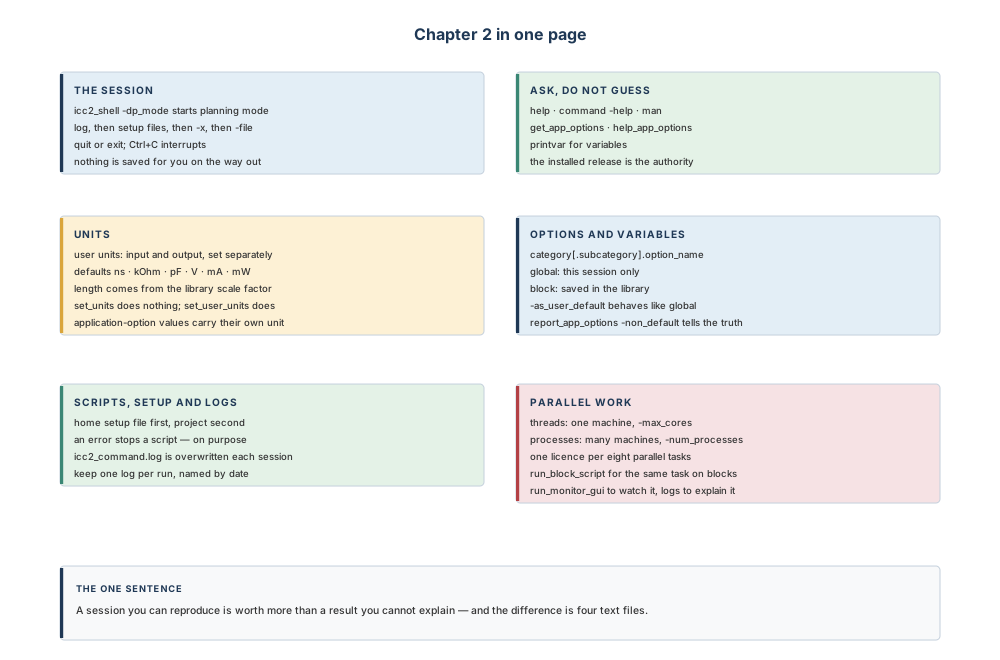
Where the next chapter goes, and why
You can now start a session that configures itself, ask the tool about its own behaviour, prove what your numbers mean, and use the machines you are entitled to. That is the whole of “how to drive the tool”. What remains is the work itself.
Chapter 3 takes the first step of it, and it follows directly from two things in this chapter. Chapter 1 established that a hierarchical plan hands each block team its own piece of the problem; this chapter established that a session's units, options and scripts have to be identical for everyone or nothing is reproducible. Put those together and a question appears immediately: the top-level design has one set of timing constraints, describing clocks, modes and corners for the whole chip — so how does each block get the part of those constraints that belongs to it, in a form its own session can read?
That is constraint splitting, and it is the subject of Chapter 3: the flow that divides a top-level constraint set across the physical hierarchy, the files it generates, how blocks are mapped to their constraint and power-intent files, and what clocks, modes, corners and scenarios mean once a design has more than one of each. It is the last piece of preparation before the floorplan itself.